Giving Your Old iPhone to Your Kid? Wipe It and Set It Up Right
Don't hand it over still signed in to your Apple Account. Check that your new iPhone has everything, unpair your Apple Watch, then erase the old phone (Settings › General › Transfer or Reset iPhone › Erase All Content and Settings). Set it up again with your child's own account from Family Sharing. Then change three settings so an older, smaller phone doesn't fill up by Christmas: video at 1080p, Messages kept for a year, and Offload Unused Apps on.
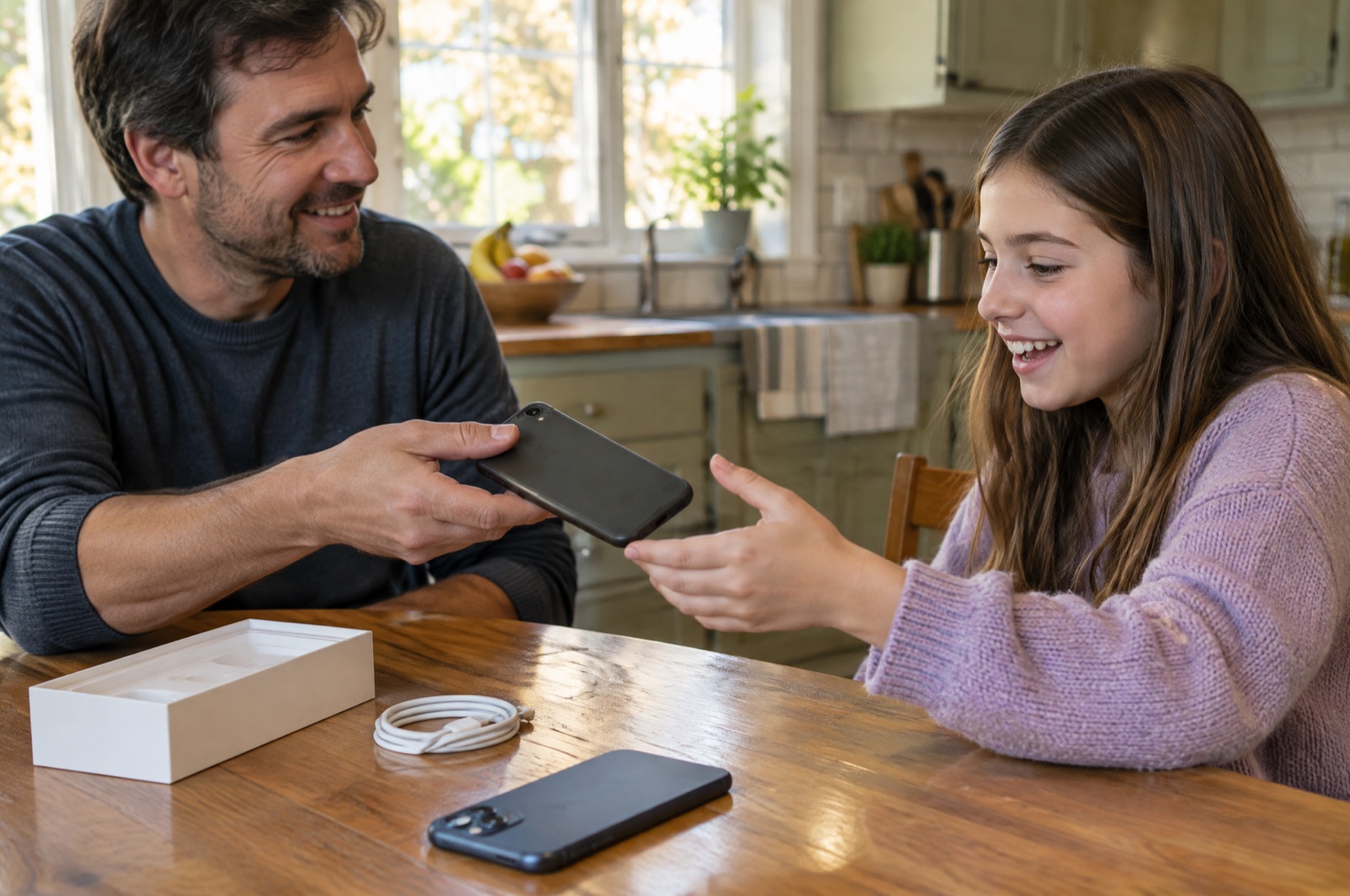
The new iPhone has been set up for a few weeks. The old one is in the kitchen drawer, still signed in and still holding four years of your photos. Your 11-year-old has asked about it every day since. The quick way is to sign out and hand it over. That's how a child ends up with half your camera roll, your group chats and an App Store that charges your card.
Doing it properly takes about 45 minutes, most of which is waiting for the phone to erase and set itself up. Here's the order.
Why not just let them use your account?
Because everything tied to your Apple Account follows it onto their phone:
- Your photos. With iCloud Photos on, your whole library syncs onto a phone that's probably smaller than the one you just bought. That's often why a hand-me-down says storage is full the day a child gets it.
- Your messages. iMessages sent to your number or email show up on their phone too, including the ones you'd rather they didn't read.
- Your card. Every in-app purchase goes through without asking you.
A child account through Family Sharing fixes all three, and you can still share the apps you've bought and, if you pay for iCloud+ at 200 GB or more, your iCloud storage. Each person's files stay private.
1. Make sure your new iPhone has everything (5 minutes)
If you set the new phone up with Quick Start (the two phones side by side) or from a recent iCloud backup, this is mostly done. Open Photos on the new phone and check that the last few weeks of pictures from the old one are there. Also check any chat app that keeps its own backup, such as WhatsApp. Its chat history isn't in your photo library, so it only moves if the transfer or the app's own backup brought it over.
Don't do a cleanup on the old phone first. It's about to be erased, so deleting things one by one is wasted time. If you still need the space on the new phone after the move, this is what to clean up around a transfer.
2. Unpair your Apple Watch (2 minutes)
If an Apple Watch is still paired to the old phone, unpair it in the Watch app before you erase. If you've already paired it with the new phone, skip this.
3. Erase the old phone (15 minutes, mostly waiting)
On the old iPhone, go to Settings › General › Transfer or Reset iPhone › Erase All Content and Settings. It will ask for your passcode, then for your Apple Account password so it can turn off Find My and Activation Lock. Don't skip that step. If Activation Lock stays on, the phone won't finish setup for anyone but you.
Signing out of iCloud on its own isn't enough. Erasing removes your photos, messages, saved passwords, downloads and app data, which is what you want before handing a phone to anyone.
Tip: If your phone number moved to the new iPhone, the old one has no working line, and that's fine for a kid who mostly uses Wi-Fi and iMessage. If they need their own number, that's a separate plan with your carrier, and it's easier to add after setup.
4. Set it up with their own account (15 minutes)
Create the child account first, on your phone. Search Settings for Family and add a child. Younger children can't create an Apple Account on their own (in the US the age is under 13, and it varies by country), so this is where you make it. Then, on the freshly erased phone, go through setup and sign in with the child's account, not yours. Recent iOS versions also have a child setup option during setup, using your phone nearby. Either route ends in the same place.
Then, from your phone:
- Ask to Buy: in your Family settings, check it's on for them. Every download and purchase then needs your approval, including free apps.
- Screen Time: search Settings for Screen Time and pick their name. Set downtime, app limits and content restrictions for their age. You can change all of it later from your own phone.
5. Check the phone itself (5 minutes)
- Updates: Settings › General › Software Update. A phone that no longer gets the current iOS is still usable, but it stops getting security fixes. That matters more on a child's first phone than on yours.
- Battery: search Settings for Battery Health. Four-year-old batteries are often the reason an old iPhone feels bad. If maximum capacity is under 80%, a battery replacement costs much less than a new phone. Our battery health guide explains the numbers.
- Capacity: Settings › General › About › Capacity tells you whether this is a 64 GB or 128 GB phone. That's the number the next section is about.
6. Three settings that stop a small phone filling up
Older iPhones often have half the storage of the one you just bought, and iOS takes a noticeable share before the first app is installed. What fills a kid's phone isn't usually photos. It's big games, long videos of their friends, and screen recordings they forget to stop.
- Video at 1080p, 30 fps. Search Settings for Record Video. 4K at 60 fps uses several times the space per minute, and a child's videos are watched on a phone screen, where nobody can see the difference. More on this in the camera settings that fill storage.
- Messages kept for a year. Search Settings for Keep Messages and choose 1 Year. Group chats full of videos and stickers add up quickly, and the default keeps them forever.
- Offload Unused Apps. Search Settings for Offload and turn it on. Games they stopped playing in a month get removed, and their saved progress stays. Here's how offloading differs from deleting.
About iCloud: a child account gets 5 GB of free iCloud storage, which isn't enough to back up a phone that's being used. If you share a 200 GB or larger iCloud+ plan through Family Sharing, their backup and photos fit, and nobody can see anyone else's files.
A few months later: "my phone is full"
It will happen. When it does, sit down with them and open Settings › General › iPhone Storage. It's a good lesson in where storage actually goes. Usually it's one game and a pile of screen recordings, and our guide to deleting screen recordings covers those.
Rather see it all at once? Phone Diet scans their photo library for duplicates, near-identical shots, long videos and screen recordings, and shows how much each group takes. The scan is free, and so is the first cleanup, up to 1 GB.
Whatever they delete goes to Recently Deleted in Photos and keeps using space for about 30 days, so empty it afterwards or nothing changes.
Who this isn't for
If you're selling or trading in the old phone, steps 1 to 3 still apply, but skip the rest and follow the buyer's or the trade-in program's instructions. If your child is older and already has their own Apple Account, don't create a new one. Sign them in with the account they have and add it to your Family group. And for the wipe and setup, you don't need any app, ours included. Everything above is built into iOS.
Frequently asked questions
Can my child use my old iPhone with my Apple Account?
It works, but it causes problems. Your photos, messages and iCloud Drive sync onto their phone and fill it, your texts show up on it, and purchases go straight to your card. Give them their own child account through Family Sharing instead. You can still share apps you have bought and an iCloud+ plan of 200 GB or more.
Do I need to erase my old iPhone before giving it to my kid?
Yes. Signing out is not enough, because your photos, messages, saved passwords and downloaded files can stay on the phone. Once your new iPhone has everything, go to Settings, General, Transfer or Reset iPhone, and tap Erase All Content and Settings. Enter your Apple Account password when asked so Find My and Activation Lock are turned off.
Is a 64 GB iPhone enough for a kid?
Usually, if it starts empty and stays on its own account. iOS takes a noticeable share before the first app, so the things that fill a kid's phone are big games, long videos and screen recordings. Set video recording to 1080p at 30 fps, set Messages to keep messages for a year instead of forever, and turn on Offload Unused Apps.
How do I set up an old iPhone for a child?
Create a child account first on your own iPhone: search Settings for Family and add a child. Then erase the old phone and, during setup, sign in with the child's account, not yours. Afterwards, manage Screen Time and Ask to Buy for them from your own phone.
When the hand-me-down fills up
Phone Diet shows what's taking the space on a kid's iPhone, from duplicate photos to forgotten screen recordings, so you can clear it together.
Get Phone Diet Free