Remove Location From iPhone Photos Before You Share
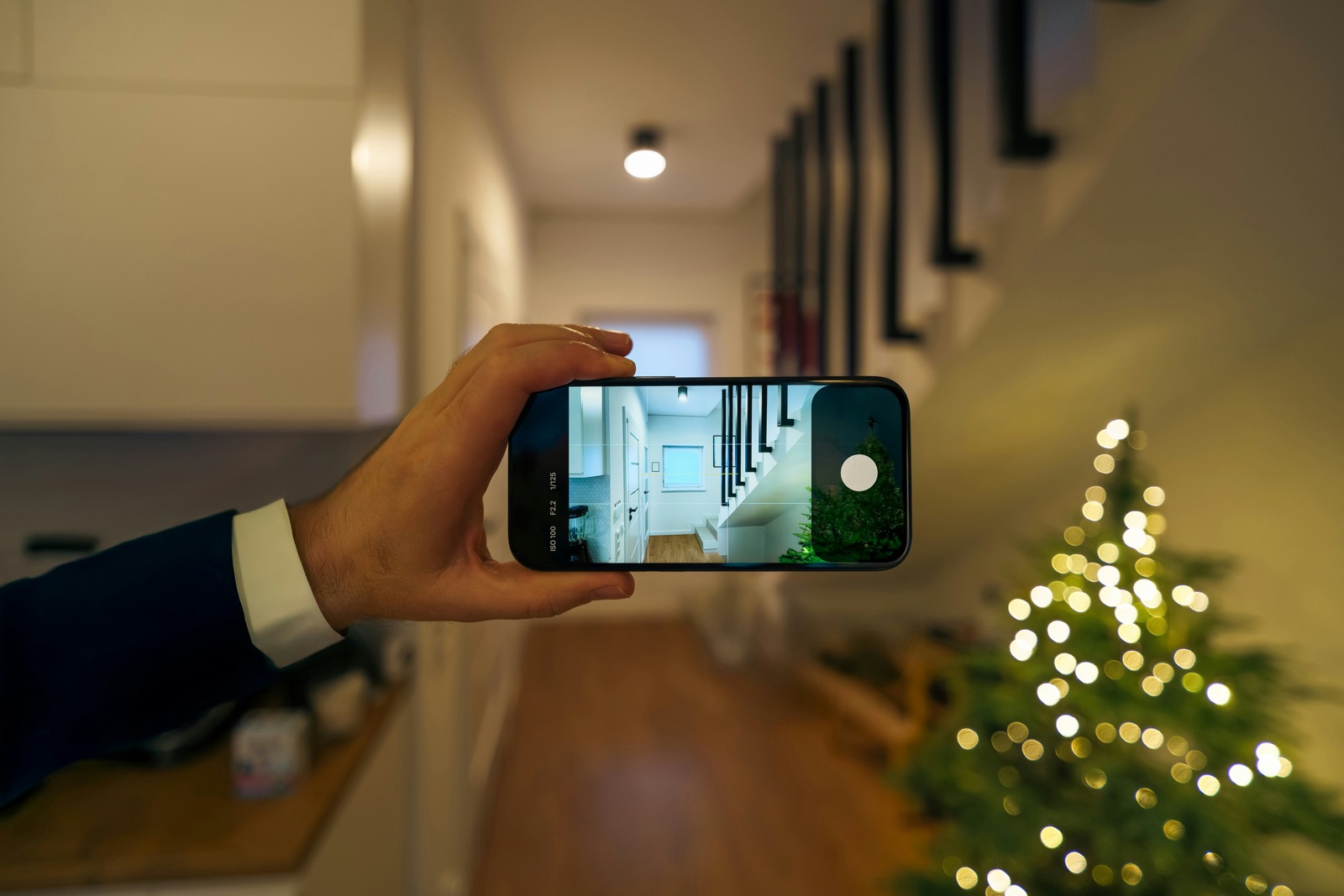
You're about to text photos of the couch you're selling to someone from Marketplace. Or you're sending a stranger pictures of the bike you're reselling before Christmas, or posting your kids in front of the tree. Then it hits you: iPhone photos taken at home can carry the exact spot they were taken, which is your address. The quick fix: select the photos, tap Share, tap Options, turn off Location, tap Done, then send. Apple says "Location Not Included" then appears above the Options button. To strip the location from the photo itself, open it and tap More > Adjust Info > Adjust Location > No Location.
The steps below come from Apple's iPhone User Guide (iOS 27) and Apple's Personal Safety User Guide (updated September 2026). They work the same way for videos.
First, check whether the photo has a location
Not every photo has one. If the Camera app was never allowed to use Location Services, there's nothing to remove. To check one photo:
- Open it in the Photos app.
- Swipe up, or tap the Info button (the "i").
If it has a location, Apple's guide says you'll see where it was taken, with a link to view it in Maps. To see everything at once, tap Collections and open the Map collection under Pinned. Apple says only photos with embedded location show up there. If photos from your living room are sitting on top of your house on that map, they're the ones to deal with.
Fix 1: send without location (just this once)
This is the one to use when you're messaging a buyer or a stranger. It leaves the photo in your library alone and only strips the location from the copy you send. From Apple's Manage location metadata in Photos:
- In Photos, tap Select and pick the photos (or open just one).
- Tap the Share button, then tap Options near the top.
- Turn off Location, then tap Done.
- Check that Location Not Included now shows above Options.
- Send it from that same Share sheet: Messages, Mail, AirDrop or the app you're posting to.
The switch is per share. Next time you share, check it again.
Leave All Photos Data off. The same Options screen can have an All Photos Data switch. Apple says turning it on sends the original "including metadata, location, and any associated edit history or captions". That's useful for sending a full-quality video to family, not for a stranger.
Fix 2: remove the location from the photo itself
Use this when the photo is going to travel, or if you upload from inside another app's photo picker instead of the Share sheet, where you won't see the Options switch. From Apple's See photo and video information guide and the Personal Safety guide:
- Open the photo in Photos and tap the More button (the circle with three dots).
- Tap Adjust Info, then Adjust Location.
- Tap No Location.
For a batch, like the ten photos in your listing, tap Select in your library, tap the photos, and then do the same steps. Afterward, swipe up on one to check the location is gone.
You can undo this. Go back to the same place and tap Revert to get the original location back. That means the original is still known to Photos. So for anything that really matters, use the Share sheet switch from Fix 1 as well, and check for Location Not Included before you send.
With iCloud Photos on, edits like this show up on your other Apple devices too. On a Mac, Apple's guide uses Image > Location > Hide Location in Photos to do many at once.
Fix 3: stop the camera saving location at all
If you'd rather new photos never carry a location, go to Settings > Privacy & Security > Location Services > Camera and choose Never. Apple says photos can only get location data if the Camera app has access to Location Services.
Two things to weigh first. It doesn't change photos you've already taken, so Fixes 1 and 2 still apply to those. And you lose things that use location. Photos can't put new pictures on the map, and searching "Hawaii" won't find this year's trip. Plenty of people leave it on and just use the Share sheet switch when sending to strangers. That's what we'd do.
What removing location doesn't hide
Stripping the location takes the coordinates out of the file. It doesn't change what's in the picture. Before you post a listing or a holiday photo publicly, look at the background as a stranger would: a house number, the street through the window, a car's license plate, a package label with your name, a school logo on a sweatshirt. Crop or retake. Apple's built-in editor crops in a couple of taps (tap Edit, then the crop tool).
When selling something, a plain wall or the floor of your garage gives buyers what they need and nothing more. When they come to pick it up, meet somewhere public if you can.
What Phone Diet can and can't do here
Full disclosure: we make Phone Diet. It doesn't remove location from photos, and you don't need any app to do it. Everything above is built into iOS and free.
One thing worth knowing if you already use it: when Phone Diet compresses a photo or video, or converts HEIC to JPEG, the new copy keeps the original's location on purpose, so your map and search still work. A compressed video is easier to send, but it isn't a privacy step. Still use the Share sheet's Location switch when you send it.
Who it's not for: if all you want is to send a few photos without your address, close this tab and use Fix 1. Phone Diet is for a different job: getting a full photo library back under control (duplicates, screenshots, huge videos) before you sell, trade in or hand down a phone.
Questions people ask
How do I send a photo from my iPhone without the location?
Select it in Photos, tap Share, tap Options, turn off Location, tap Done. Check for "Location Not Included" above Options, then send from the same Share sheet.
How do I remove the location from a photo on iPhone permanently?
Open it, tap More > Adjust Info > Adjust Location > No Location. For several, tap Select, pick them, then do the same. Revert on the same screen brings the location back.
How can I tell if an iPhone photo has a location?
Open it and swipe up. If it has one, you'll see where it was taken with a link to Maps. Collections > Map shows every photo that has a location.
How do I stop my iPhone camera saving location?
Settings > Privacy & Security > Location Services > Camera > Never. Photos you already took keep their location until you remove it.
Does All Photos Data include location?
Yes. Apple says it sends the original with metadata, location, edit history and captions. Leave it off for strangers.
Selling or handing down your old iPhone too?
Phone Diet finds duplicates, screenshots and the biggest videos so you can clear the library before you back it up and wipe the phone.
Get Phone Diet on the App Store