iPhone Says "Cannot Take Photo" — Storage Full at the Worst Moment
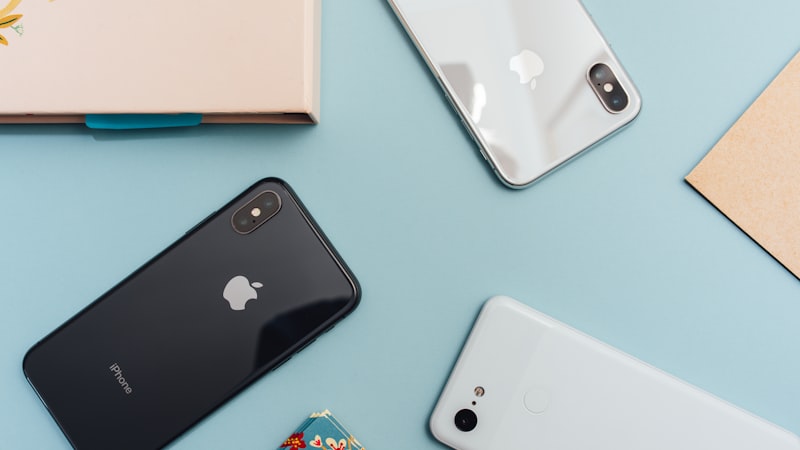
The candles are lit, or the goal has just gone in, or your kid is on stage — and the camera comes back with "Cannot Take Photo. There is not enough available storage." You have maybe thirty seconds before the moment is gone.
This page is written in that order: the thirty-second fix first, the explanation second, and the proper clear-out last, for tonight when you are sitting down.
Do this first (about 30 seconds)
Open Photos › Albums › Recently Deleted and tap Delete All.
That single step frees more space, faster, than anything else available to you in the moment — because everything you have deleted in the last 30 days is still on the phone, in full, waiting out its recovery window. If you have had a clear-out at any point this month, the space is sitting right there.
Then take the shot. If it still refuses, keep going.
The next 30 seconds: one big video
Go to Photos › Albums › Media Types › Videos. The longest clips are the biggest files on your phone by a wide margin — a few minutes of 4K will outweigh most of your apps. Delete one or two you have already watched or already shared, then empty Recently Deleted again. The calmer version of that pass is how to find and delete large videos. If you want the clip, compress it instead of deleting it.
Two long videos will usually buy you the rest of the evening.
Tip: If you are about to record something long and the phone is tight on space, drop the setting for tonight: Settings › Camera › Record Video, and choose 1080p at 30 fps. It is roughly a third the size of 4K at 60, and on a phone screen you will not see the difference. Put it back afterwards.
Rather not scroll for it? Phone Diet lists your biggest videos in one scan so you can pick the one to clear.
Why the camera stops before storage actually hits zero
Your storage bar can show a gigabyte or so free while the camera still refuses, and that is not a bug.
A photo is not written straight to its final resting place. The camera needs working room — for the frame it just captured, for the several frames it captured around it, for the HDR and Deep Fusion processing that happens after the shutter, and for the thumbnail and metadata that get written alongside. Video needs a running buffer for as long as you are recording, not a single allocation at the end.
So iOS keeps headroom in reserve and refuses the shot rather than starting something it cannot finish. A message that arrives a bit early is much better than a recording that dies halfway through your kid's solo.
The thing that makes people think none of this worked
This catches almost everyone, so it is worth being blunt about it: deleting photos does not free space. It moves them to Recently Deleted, where they stay for up to 30 days, still occupying exactly as much room as before.
If you delete two hundred photos and the storage bar does not move, nothing has gone wrong — you are one step short. Open Albums › Recently Deleted and choose Delete All. That is the step that actually returns the space, and it is why it is the first instruction on this page rather than the last. We have written that one up on its own in how to empty Recently Deleted on iPhone.
Tonight: the clear-out that stops it recurring
The emergency steps above buy you an evening. What stops this happening at the next birthday is clearing the four categories that quietly make up most of a full camera roll:
- Long videos. The single biggest lever. Most people have a handful of multi-minute clips they have watched exactly once. Walkthrough: find large videos, or compress the keepers.
- Duplicates and near-duplicates. The eleven almost-identical frames from one burst, where you only ever wanted one.
- Blurry shots. Taken while the camera was still moving. Nobody will ever open them.
- Screenshots. Receipts, confirmation codes, things you captured to remember for an afternoon in 2023. Guide: how to delete screenshots.
Screen recordings hide in their own album and can be as large as a camera clip. If Control Center recording is a habit, clear those too: how to delete screen recordings.
Those four are exactly what Phone Diet scans for. The review happens on the device, it groups the library into those categories so you are working through a short list instead of scrolling years of camera roll, and deletions are reversible — there is an undo for about twelve seconds, and a Recover tab that holds items for 7, 30 or 60 days, whichever you pick.
One honest caveat, because it is the same trap as above: cleaning inside the app still routes the photos through the Photos app's own Recently Deleted album. When you want the space back on the storage bar, you still need to empty it.
Make the next event a non-event
Three habits, in order of how much they save for how little effort:
- Check the day before, not the day of. Settings › General › iPhone Storage, and give the bar a few seconds to calculate. If you are under about 5 GB going into a big day, clear something.
- Turn on Optimize iPhone Storage in Settings › [your name] › iCloud › Photos, if you use iCloud Photos. Full-resolution originals move to iCloud and the phone keeps smaller versions until you open one.
- Empty Recently Deleted on a schedule. Once a month, thirty seconds. It is the difference between a clear-out that works and one that appears to do nothing.
And if the phone is already full rather than nearly full, the wider version of this is here: iPhone storage full? Here's what to do.