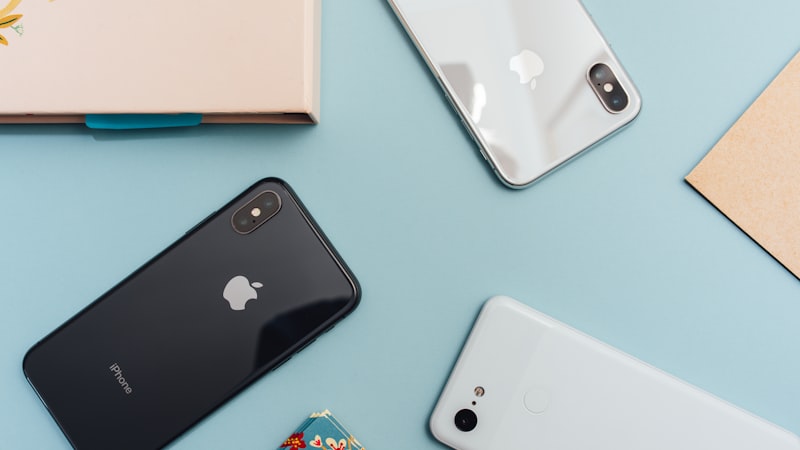
Suitcase is packed. Phone is not. Storage Almost Full shows up the night before a flight — right when you need Maps, boarding passes, and room for new photos.
This is a pre-trip packing checklist for storage, not a post-vacation dump of summer duplicates, and not a deep dive on one album. Work it at home with Wi‑Fi. Review before you delete. Leave headroom for the trip.
Outcome: enough free space that the camera, offline maps, and airline apps can do their job — without nuking the one confirmation screenshot you still need at the gate.
Why travel week fills an iPhone so fast
Trip prep adds weight in several buckets at once. Knowing which bar grew stops you from deleting the wrong things.
- Photos — test clips, old 4K video, and screen recordings you meant to send once.
- Screenshots — tickets, hotel chats, packing lists, and “save this for later” maps that never got filed.
- Offline downloads — Netflix, YouTube, Spotify, Apple Music, podcasts. They live in Documents & Data, not Photos.
- Messages — years of video and image attachments still counting toward storage.
- Recently Deleted — space you thought you freed still held for up to 30 days.
If you only came for oversized Camera Roll clips, use the dedicated guide: find and delete large videos. This page is the wider packing pass.
Step 0 — Read iPhone Storage before you touch anything
- Open Settings → General → iPhone Storage.
- Note the heavy categories: Photos, Messages, big apps with large Documents & Data, or System Data.
- If you just installed an iOS update and System Data looks swollen, see storage full after an iOS update before a panic wipe.
Rule: clean the bar that is actually large. Deleting random selfies will not shrink Netflix Downloads or Messages attachments.
The pre-vacation packing checklist (safe order)
Do these in order so review stays ahead of delete.
1. Protect trip-critical stuff first
Before any Screenshots sweep, pull aside what still matters for the trip:
- Boarding passes, hotel or Airbnb confirmations, visa or ID photos
- Address screenshots, transit maps, meeting QR codes
- Anything you do not have in Wallet, the airline app, email, or Files yet
Move keepers into a trip album, Files, or the airline/wallet app. Then you can clear the rest of Screenshots with less fear. Full album walkthrough: how to delete screenshots on iPhone.
2. Clear failed videos and old screen recordings
Open Photos → Albums → Videos, and Screen Recordings if you have that album. Sort attention by longest duration first.
Usually safe to trash
Floor-pointed takes, cut-off clips, duplicate angles of the same moment, outdated bug-report recordings, videos you already exported elsewhere.
Keep or compress
Family moments, last trip’s keepers, concerts, anything you might rewatch. Prefer compress videos over delete when the memory still matters.
Review before Confirm. A calm pass at home beats deleting the wrong clip on hotel Wi‑Fi.
3. Trim offline downloads you will not need in flight
Offline episodes and playlists are great for the plane — finished ones are dead weight.
- Netflix downloads — remove titles you already watched
- YouTube offline — clear Downloads you will not rewatch
- Spotify / Apple Music — remove playlists you will stream at the destination
- Podcasts — wipe finished episodes and turn off auto-download if it keeps refilling
These live under each app’s Documents & Data. Offloading the app will not remove them — see offload vs delete.
4. Skim Messages large attachments (if Messages is a heavy bar)
If iPhone Storage shows Messages near the top, open Messages settings and use Review Large Attachments (wording varies by iOS). Delete old videos and images you do not need. Details: delete old text messages and attachments.
5. Empty Recently Deleted so free space actually appears
- Photos → Albums → Recently Deleted → Delete All (or select carefully).
- If you cleared Safari or Files downloads, empty Recently Deleted in Files too.
Until you empty trash, deleted items can still count for up to 30 days. Full guide: empty Recently Deleted on iPhone.
6. Recheck storage and leave trip headroom
Return to Settings → General → iPhone Storage. Confirm the bar moved. Leave room for:
- New photos and video from the trip
- Offline Maps packs if you use them
- Airline, transit, and hotel apps that cache boarding data
Timing: run this the night before or morning of departure — not in the security line. You want Wi‑Fi if you need to re-download a ticket or map after a mistake.
One non-storage item for a beach or pool trip: if the phone takes a dunk and the speaker goes muffled, here is the safe way to get water out of it — and why rice and hair dryers make it worse.
Rather do the photo part in one pass? Phone Diet finds oversized videos, screenshots and near-duplicates in one on-device scan, with review before anything is deleted.
What not to do the morning of the flight
- Blind bulk-delete of Screenshots before you pulled boarding passes and confirmations aside.
- Factory reset “to free space” — overkill and a travel-day disaster if restore is slow.
- Offloading WhatsApp / Chrome / Netflix hoping Documents & Data shrinks — it will not.
- Skipping Recently Deleted and wondering why free space barely moved.
- Deleting keepers you meant to compress — use the compression guide when the memory still matters.
Pre-trip vs after-trip cleanup
Before you leave (this page)
Protect tickets and maps. Clear failed video and finished offline downloads. Empty trash. Leave headroom for new shots.
After you get home
Duplicates, similar bursts, Live Photos, and the big trip montage — see the end-of-summer / post-vacation cleanup and large videos.
When a Photos cleaner helps (after the manual pass)
iOS gives you the albums and the Settings bars. A guided Photos pass helps when the library is huge and you want oversized clips, screenshots, and near-duplicates listed faster — still with review before delete.
I use the iPhone app Phone Diet: Clean Up Storage for on-device duplicates, similar shots, screenshots, and large videos with Recover, which keeps deleted items for 30 days. Photos never leave the phone. Website/brand: Phone Diet. It cannot empty another app’s Documents & Data (Netflix, Spotify, Chrome) — clear those in-app first.
Clear Space. Keep the Trip.
After the packing checklist, I use the iPhone app Phone Diet: Clean Up Storage for on-device review of large videos, screenshots, and similar shots — with Recover, which keeps deleted items for 30 days. It is on the App Store here.
Get on the App Store →Frequently Asked Questions
Why is my iPhone storage full right before a trip?
Usually a mix of Photos (long video and screen recordings), offline streaming downloads, Messages attachments, and items still in Recently Deleted. Read iPhone Storage first so you clean the heavy bar.
Should I delete photos before vacation to free space?
Not blindly. Review first: trash failed takes and old recordings, compress keepers, clear finished offline downloads, empty Recently Deleted, and keep boarding passes until you have another copy.
When should I run a pre-travel iPhone cleanup?
The night before or morning of departure, at home on Wi‑Fi — not at the gate.
Does emptying Recently Deleted matter before travel?
Yes. Deleted items can still occupy storage for up to 30 days until you empty Recently Deleted in Photos (and Files if needed).