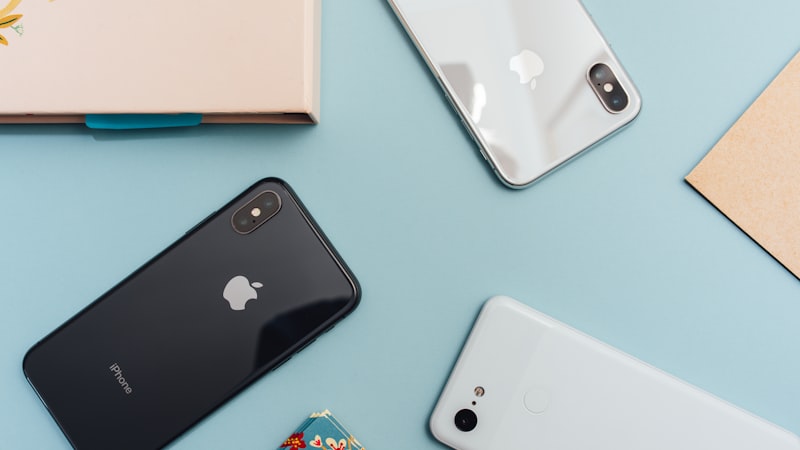
You spent an evening clearing space. Two weeks later the warning is back. Nothing went wrong — the camera simply refilled the gap, because on most iPhones it is set to record at the most expensive settings available and nobody ever told it otherwise.
This page is about the five settings that decide how fast that happens, what each one actually costs, and what you give up by changing it. Some are worth changing today. At least one probably is not. All of them are in Settings → Camera, and none of them will touch a single photo you have already taken.
Before you change anything: these settings only affect what you shoot from now on. If the phone is full today, that is a different job — start with the large videos already on it or the duplicates.
Read your own numbers first
Open Settings → Camera → Record Video. Beside every resolution and frame rate, Apple prints an approximate size per minute for your model. That screen is more trustworthy than any figure in an article, including this one, because the numbers move between iPhone generations and iOS versions.
Look at the gap between the top option and the one two rows down. On recent iPhones, 4K at 60 fps is listed at several hundred megabytes a minute, while 1080p at 30 fps is a small fraction of the same minute. That gap is the entire reason your storage refills.
1. Video resolution and frame rate
This is the single biggest lever on the phone, and it is not close. A ten-minute school concert at 4K 60 can cost more than a thousand photos.
What to do: if you mostly shoot clips that get watched once on a phone screen and then sit in the library forever, 1080p at 30 fps is genuinely enough. If you shoot things you will actually edit or put on a television, keep 4K but drop to 30 fps — 60 fps is for slow motion and fast action, and it roughly doubles the cost of every second.
What you give up: cropping room in an edit, and smoothness on fast pans. For most libraries, nothing you will ever notice.
2. Formats: High Efficiency vs Most Compatible
In Settings → Camera → Formats, High Efficiency records HEIF photos and HEVC video. Most Compatible records JPEG and H.264 — roughly double the size for the same shot.
What to do: keep High Efficiency. Most Compatible exists for software that cannot open HEIC files, not because it looks better. If you switched it years ago to fix one stubborn app, it is probably still on, quietly doubling everything since.
What you give up: nothing on quality. Occasionally an old Windows program or a website upload will refuse a HEIC file — and if that happens, you can convert the individual photos rather than doubling your whole library in advance.
3. ProRAW and ProRes, if you have a Pro
Same Formats screen, further down, on Pro models. A ProRAW frame holds far more editing data than a normal photo and is many times the size. ProRes video is larger again — it is a production format.
What to do: turn both off unless you genuinely edit afterwards. These are excellent settings for people who open Lightroom later that day, and an expensive habit for everyone else who turned them on once to see what they did.
What you give up: latitude when editing. If you do not edit, you are paying for information you will never open.
4. Live Photos
A Live Photo stores a short video clip alongside the still, so one press costs roughly two files. Across a few thousand shots that is real money.
What to do: this one is genuinely a judgement call, and it is the setting people most regret turning off. Live Photos of people and pets are worth their weight. Live Photos of a car park level, a receipt, or a whiteboard are not.
The practical middle ground is Settings → Camera → Preserve Settings → Live Photo. Switch that on and the camera stops resetting the toggle every time you open it, so turning Live off for a week of errands actually sticks.
What you give up: the little movement, and the ability to pick a better frame afterwards. If you already have thousands of them, converting the ones that do not need movement recovers space without losing the picture.
5. Cinematic mode and slo-mo
Cinematic records depth information alongside the video so focus can be changed later, and slo-mo records many more frames per second than it plays back. Both are heavier per second than ordinary video at the same resolution.
What to do: nothing in Settings — these are chosen per shot in the Camera app. Just know that a Cinematic clip is not a free version of a normal one, and that an accidental slo-mo of someone walking to the car costs more than the moment was worth.
What this will not fix
Every change above starts working on your next shot and does nothing whatsoever about the library you already have. If the phone is full now, the settings are prevention, not the cure.
That part is worth being honest about: no app can change these settings for you either — they live in Settings and only you can touch them. What an app can do is deal with what the camera already produced. Phone Diet: Clean Up Storage scans on-device for duplicates and near-identical bursts, screenshots you never look at, and the handful of large videos that usually account for most of the problem, and everything it removes sits in a 30-day undo vault first.
Do both and the cleanup holds. Do only the cleanup and you will be back here in a fortnight.
Frequently asked questions
Does changing camera settings free up space already used?
No. Every setting here applies only to what you shoot from now on. Existing photos and clips stay exactly the size they were.
Is High Efficiency worse quality than Most Compatible?
No. It stores the same image in roughly half the space using newer formats. Most Compatible is about old software, not image quality.
Should I just turn Live Photos off?
Only if you never use them. The better move for most people is Preserve Settings, so switching it off when you do not need it actually sticks.
Does turning off HDR or Photographic Styles save space?
Barely. Styles are baked into the one image. Older iPhones had a Keep Normal Photo option that saved a second copy alongside every HDR shot — if yours still has it and it is on, that one is worth switching off. Resolution, format and Live Photos are where the real money is.
Now clear what the camera already made
The settings stop the refill. Phone Diet: Clean Up Storage finds the duplicates, near-identical shots and oversized videos already sitting in your library — on-device, with a 30-day undo vault.
Download Free — 3 Day Trial