Not Enough iCloud Storage for Your New iPhone? Use Apple’s Free Backup
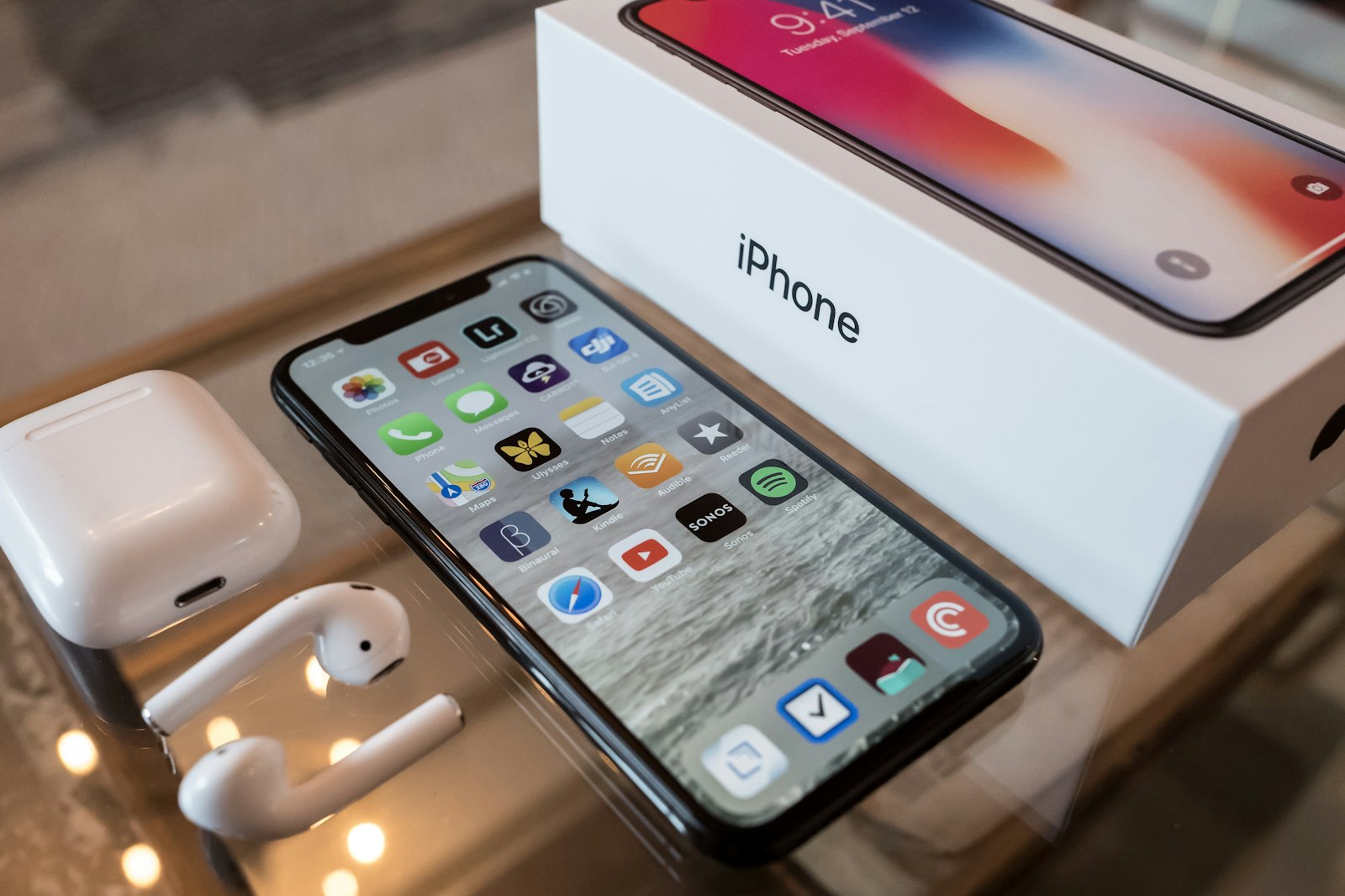
Your new iPhone is ordered (or wrapped and waiting for Christmas), and you go to back up the old one. iPhone says there isn't enough iCloud storage. The free tier is 5 GB, and almost no phone's backup fits in that.
The short answer: you don't have to buy more iCloud. Apple gives free temporary iCloud storage for exactly this. On the old iPhone go to Settings → General → Transfer or Reset iPhone, and under Prepare for New iPhone tap Get Started. You then have 21 days to restore that backup to the new phone, and 21 more if it hasn't arrived. If both phones are in your hands right now, you can skip iCloud entirely and use Quick Start instead.
Which route fits your situation
- Both phones are here today: use Quick Start. Turn on the new iPhone, hold it next to the old one, and choose to transfer directly. Apple says the old phone needs Wi-Fi and Bluetooth on, and both should stay close together and plugged in until it finishes (Apple Support). No iCloud storage involved.
- The new phone is still shipping, or it's a gift: use the temporary iCloud backup now, then restore when the phone arrives.
- You're trading in the old phone: either works, but don't erase or ship the old one until the new one has everything. Our trade-in checklist covers the rest.
Get the free temporary iCloud storage (old iPhone)
These are Apple's steps (Apple Support: Get temporary iCloud storage). Update the old phone to the latest iOS first, and have your Apple Account password handy.
- Open Settings and tap General.
- Scroll down and tap Transfer or Reset iPhone.
- Under Prepare for New iPhone, tap Get Started.
- If iCloud Backup is off, tap Turn On Backup to Transfer. If you don't have enough storage, you'll see the offer for free extra iCloud storage. Tap Continue.
- Keep the phone on Wi-Fi and plugged in, and wait for the backup to finish.
If no offer appears, that usually means your backup already fits in your iCloud plan. Apple only offers the extra space when you don't have enough.
Tip: Giving the iPhone for Christmas? Don't start the backup on Black Friday. Anything you do on the old phone after the backup won't be in it. Run it a day or two before the new phone gets opened, so the restore is close to up to date.
The three deadlines to know
- 21 days to restore. After that the temporary storage expires and Apple permanently deletes the backup.
- 21 more days if the phone is late. On the old iPhone, open Settings and tap Keep My Backup Longer. Apple says you can contact Apple Support if you need more time than that.
- 7 days after you restore. The temporary backup stays for a week after the restore, then it's deleted.
Apple also says not to erase the old device until the restore is complete. Keep it as it is until you've checked the new one.
Restore it on the new iPhone
- Turn on the new iPhone and follow the setup screens.
- On Apps & Data (some versions say Transfer Your Apps & Data), choose Restore from iCloud Backup (or From iCloud Backup).
- Sign in with your Apple Account.
- Pick the most recent backup, the one dated when you ran Prepare for New iPhone.
- Stay on Wi-Fi. Settings come back first, then apps and their data download in the background.
Before you erase the old phone, check your photos
This is the part that catches people. An iCloud backup only holds what isn't already synced to iCloud (Apple Support: What does iCloud back up?):
- iCloud Photos off: your photos and videos are in the backup, so they come back with the restore.
- iCloud Photos on: photos are not in the backup. They download from iCloud Photos instead. If your iCloud has been full for a while, some recent photos may never have finished uploading.
So before you erase or trade in the old phone, open Photos on both, scroll to the bottom of the library, and compare the photo and video counts. Do the same quick look in Messages for a conversation that matters. If anything is missing, Quick Start from the old phone (or importing photos to a computer) will get it across while you still have the original.
A week later: iCloud is full again
The temporary space is only for the move. Seven days after the restore it's gone, and you're back to your normal plan. On the free 5 GB, the new iPhone's own iCloud Backup will usually fail again, and the "iCloud storage full" message comes back. You have three honest options:
- Pay for iCloud+ if you want automatic nightly backups. This is the simplest fix for most people.
- Back up to a computer instead, with Finder on a Mac or the Apple Devices app on Windows.
- Make what you store smaller, so it fits the plan you already have. iCloud storage full? How to fix it without paying walks through what's actually using the space, starting with old device backups.
If the bulk is your photo library, Phone Diet finds duplicates, near-identical shots and the largest videos on the phone, and can compress videos to about half the size at the default level.
Where Phone Diet helps, and where it doesn't
We make Phone Diet, so take this with that in mind. It can't give you iCloud storage, run the Prepare for New iPhone backup, or move anything between phones. That's all Apple's tools, and they're free. For the move itself you don't need any app.
Where it helps is the week after, if you decide to fit inside a smaller iCloud plan instead of paying for a bigger one. It scans the photo library on the device, groups duplicates and similar photos, lists large videos, and compresses videos you want to keep. If you'd rather tidy up before the move so the new phone starts clean, here's what to clean up before you transfer.
If you're paying for iCloud+ anyway and have room, you don't need us for this.
Quick answers
Is Apple's temporary iCloud storage really free?
Yes. If you're getting a new iPhone or iPad and don't have enough iCloud storage to back up your current one, Apple offers free temporary iCloud storage just for the move. Start it in Settings > General > Transfer or Reset iPhone > Prepare for New iPhone > Get Started.
How long does the temporary iCloud backup last?
Apple gives you 21 days to restore it to the new device. If the new phone hasn't arrived, tap Keep My Backup Longer in Settings on the old phone for 21 more days. After you restore, the temporary backup stays for 7 days and is then permanently deleted.
Why don't I see the free iCloud storage offer?
Apple only shows it when your iCloud storage isn't enough to back up the phone, and it asks you to update to the latest iOS first. If your backup already fits, there's no offer because you don't need it.
Do I need iCloud at all to move to a new iPhone?
No. Quick Start can transfer directly from the old iPhone to the new one when both are in your hands, without using iCloud storage. The temporary backup is for when the new phone isn't there yet or you'd rather restore from iCloud.
Are my photos in the temporary backup?
Only if iCloud Photos is off. With iCloud Photos on, photos sync from iCloud Photos instead of the backup, so check the photo count on the new phone matches before you erase the old one.
Moved in, and iCloud's full again?
Phone Diet finds the duplicates and big videos that are filling your library, right on the iPhone.
Get Phone Diet on the App Store