Getting a New iPhone? Clean These Up Before You Transfer
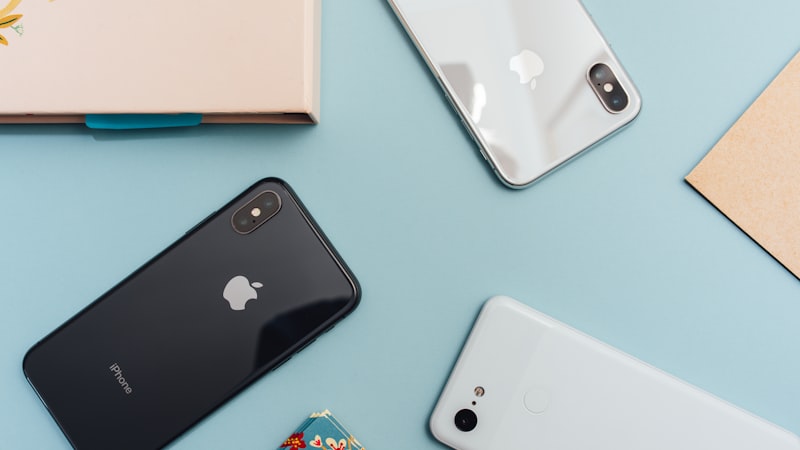
The box is on the table, or it arrives tomorrow. In a few minutes you are going to put the two phones next to each other, or restore from an iCloud backup, and whatever is on the old phone is going to become whatever is on the new one.
That is the part worth twenty minutes. A transfer is the one moment when every forgotten screen recording, every duplicate burst, and every 4K clip you meant to trim gets carefully copied onto a phone you just paid for. Clean first and the transfer is faster, the backup actually fits, and you start on a phone that isn't already three-quarters full.
First, know what actually comes across
This matters because it tells you what is worth deleting and what is a waste of your evening.
Device-to-device transfer (the one where you hold the phones near each other during setup) moves the most: apps, photos, messages, settings. Restoring from an iCloud backup moves your data and settings, then re-downloads the apps themselves from the App Store.
Here is the part people don't expect. Offline downloads mostly do not survive either route. Netflix episodes, Spotify and Apple Music downloads, podcast episodes, offline maps — apps mark that kind of content as re-downloadable so it is excluded from backups, which is exactly what Apple asks developers to do. On the new phone the app comes back, your library and your place in the queue come back, and the actual files have to be downloaded again.
So deleting those downloads on the old phone costs you nothing. You were going to lose them anyway. What it does buy you is a smaller backup and a shorter transfer.
Tip: App caches are in the same category. They don't transfer, and clearing them the night before a migration doesn't speed anything up. Skip them tonight — they're worth doing on a normal week, not this one.
The twenty-minute pass, in payoff order
Do these in order and stop whenever you've freed enough. The first two are most of the win.
1. Long videos
Video is almost always the biggest single category, and a handful of files usually account for most of it. In Settings → General → iPhone Storage → Photos, iOS offers a Review Large Videos list that sorts your clips by size. That list is where the failed takes, the 12-minute concert video nobody has watched, and the accidental 4K recording of a pocket all surface at once.
You don't have to delete them to win here. Trimming a long clip or compressing it keeps the moment and returns most of the space. Step-by-step: find and delete large videos, then compress the keepers.
Rather have them sorted by size? Phone Diet lists your longest videos in one scan, and can compress the ones you want to carry over.
2. Duplicates and near-duplicates
Burst frames, the four attempts at the same photo of the same dog, the picture you sent to someone and then re-saved from the thread. Duplicates are the category people most underestimate, because each one looks like a single harmless photo in Recents.
iOS has its own Duplicates album in Photos, which finds exact matches. It does not catch the near-duplicates — the four nearly identical shots where only one is sharp — which is where most of the actual space sits.
3. Screenshots and screen recordings
Screenshots are small individually and enormous collectively. Screen recordings are the opposite: few of them, and each one can be hundreds of megabytes. Both have their own albums in Photos, and both are almost entirely disposable a month after the fact. Guides: delete screenshots and delete screen recordings.
4. Offline downloads you're about to lose anyway
Per the section above: clearing these shrinks the backup without costing you anything real. Streaming apps keep their own downloads list in their own settings, which is where you remove them.
5. Empty Recently Deleted — this one is not optional
Deleted photos sit in Photos → Albums → Recently Deleted for 30 days and still occupy storage the whole time. If you spend an evening deleting and skip this step, you have freed almost nothing and your backup is the same size it was.
This is the single most common reason people say "I deleted hundreds of photos and nothing changed."
Tip: Do the Recently Deleted step last, after you've finished deleting — not in the middle. And give iOS a few minutes afterwards before you check how much space you actually got back; the number in Settings lags.
If the real problem is that the iCloud backup won't fit
The free iCloud tier is 5 GB, which no modern iPhone's backup fits inside. If you're stuck here you have three honest options, and only one of them is cleaning.
You can pay for a month of extra iCloud storage, do the transfer, and cancel — this is legitimate and is what Apple expects. You can use the direct device-to-device transfer instead, which doesn't touch iCloud at all. Or you can cut the library down until the backup fits, which is real work and is only worth it if you wanted a smaller library anyway.
Apple also offers a temporary free iCloud allowance specifically for moving to a new device. If you see that offer during setup, take it — it is the least painful of the three.
After the transfer, check two things
Give the new phone a night on Wi-Fi and power. Photos, in particular, keeps syncing and optimising long after setup says it's finished, so the storage number you see on day one is not the real one.
Then re-download only the offline content you actually use. This is the rare chance to not rebuild the pile — most people re-download three playlists and two shows, not the forty they had.
Signing in to iCloud, Gmail and Outlook on the new phone is also when the address book doubles: each account syncs its own copy of the same people. If it has, here is how to merge duplicate contacts.
Where an app helps, and where it doesn't
To be straight about it: no cleanup app can move anything to your new iPhone, and none of them can make an iCloud backup smaller than your actual data. What we can do is the finding — surfacing the near-duplicate sets, the long videos and the forgotten screen recordings faster than scrolling four years of Recents.
If your library is small, or you already keep on top of it, you don't need us for this. Do the Recently Deleted step and go enjoy the new phone.
Shrink the pile before you carry it across
Phone Diet finds the duplicates, long videos and screen recordings in one scan, so the twenty-minute pass above takes closer to five.
Download Free — 3 Day Trial