How Much iPhone Storage You Need to Record a School Concert
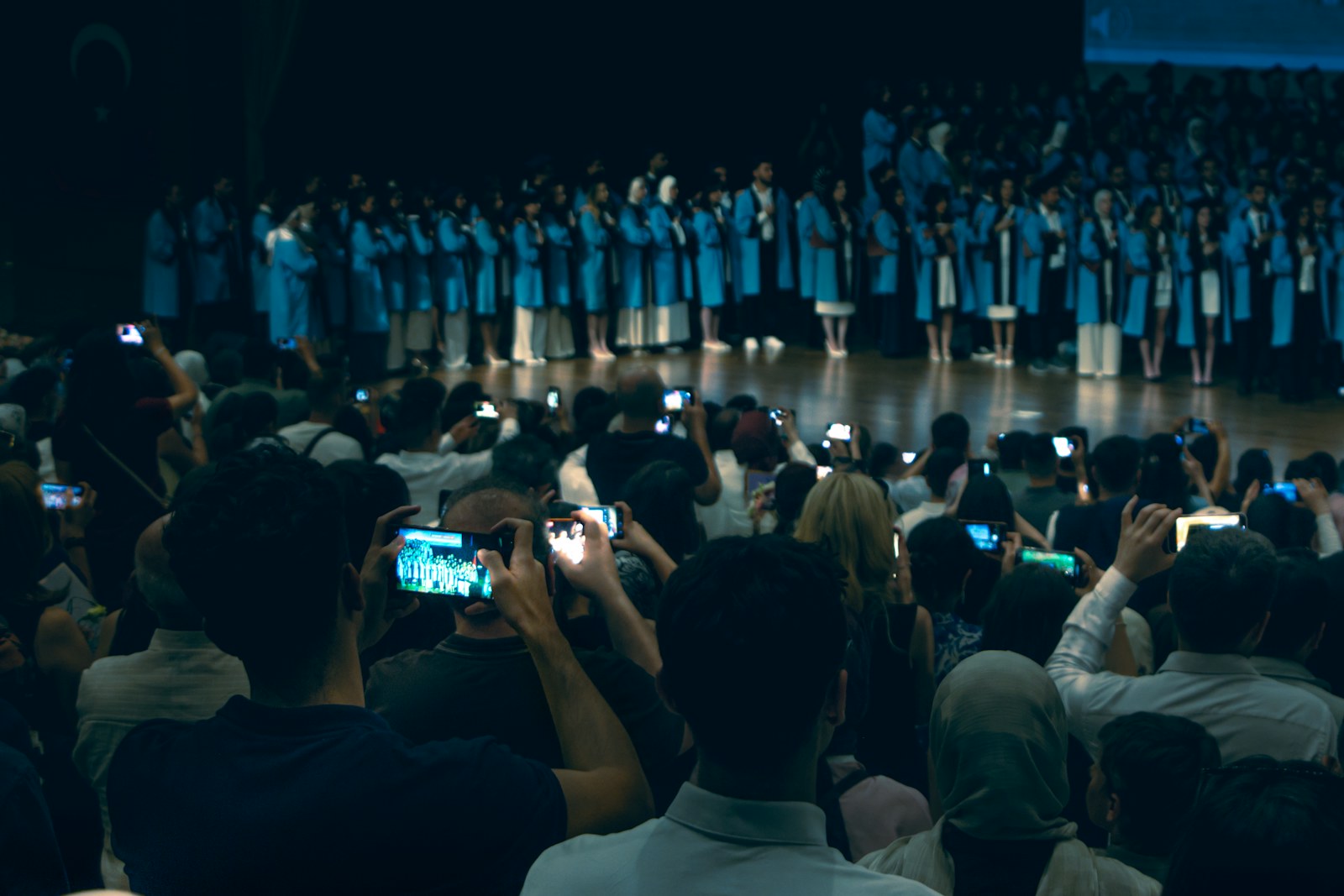
The winter concert is tomorrow night, your kid has a solo, and your iPhone has been saying Storage Almost Full since October. The short answer: a 45-minute concert needs about 3 GB at 1080p HD at 30 fps, or 8 to 9 GB at 4K at 30 fps. Have that much free plus a few gigabytes to spare, set the camera to 1080p if space is tight, and turn on Do Not Disturb before the first song. The rest of this page is how to check, what to change, and what to do in your seat.
The steps follow Apple's iPhone User Guide for iOS 27. The Camera settings named here are in the same places on iOS 26 and iOS 18.
How big the video will be
Your iPhone tells you. Open Settings > Camera > Record Video. Under the list of resolutions, iOS prints roughly how big one minute of video is at each setting on your model. Multiply by the length of the program.
The figures below are Apple's own. They are the text iOS prints on that screen under “A minute of video will be approximately,” which we read from the Camera settings in iOS 27.0; iOS 26 and iOS 18 list the same numbers. There are three sets, and the one you see depends on two settings: Settings > Camera > Formats (High Efficiency or Most Compatible) and the HDR Video switch on the Record Video screen.
| One minute of video | High Efficiency (HEVC) | High Efficiency, HDR Video on | Most Compatible (H.264) |
|---|---|---|---|
| 720p HD, 30 fps | 40 MB | 45 MB | 60 MB |
| 1080p HD, 30 fps | 60 MB | 65 MB | 130 MB |
| 1080p HD, 60 fps | 90 MB | 100 MB | 175 MB |
| 4K, 24 fps | 135 MB | 150 MB | 270 MB |
| 4K, 30 fps | 170 MB | 190 MB | 350 MB |
| 4K, 60 fps | 400 MB | 440 MB | High Efficiency only |
Not every iPhone offers every row, and Apple calls the sizes approximate. Your own Settings screen is the number to trust.
Multiplied out for a whole program in High Efficiency, counting 1 GB as 1,000 MB. The lower figure is with HDR Video off, the higher with it on:
| Setting | 45 min | 60 min | 90 min |
|---|---|---|---|
| 720p HD, 30 fps | 1.8–2.0 GB | 2.4–2.7 GB | 3.6–4.1 GB |
| 1080p HD, 30 fps | 2.7–2.9 GB | 3.6–3.9 GB | 5.4–5.9 GB |
| 1080p HD, 60 fps | 4.1–4.5 GB | 5.4–6.0 GB | 8.1–9.0 GB |
| 4K, 30 fps | 7.7–8.6 GB | 10.2–11.4 GB | 15.3–17.1 GB |
| 4K, 60 fps | 18.0–19.8 GB | 24.0–26.4 GB | 36.0–39.6 GB |
Two things make files bigger. Apple's guide notes that faster frame rates and higher resolutions result in larger video files, so 4K at 60 fps is in a different league from everything else. And if Settings > Camera > Formats is set to Most Compatible instead of High Efficiency, the phone records in the older H.264 format, which Apple says takes more storage for the same quality. By Apple's figures above, 45 minutes at 1080p HD at 30 fps is then about 5.9 GB, not 2.7. Leave it on High Efficiency.
Check your free space tonight
Per Apple's storage article: open Settings > General > iPhone Storage. The bar at the top shows how much is used out of the total. Subtract to get what's free.
Our rule of thumb: have the size from the second table free, plus about 5 GB. The spare room is for the photos you'll take afterwards, the apps that update overnight, and the fact that an iPhone with almost nothing free gets slow and starts refusing things. If the sum doesn't work, you have two levers: record at a lower setting, or clear space.
Pick the setting: 1080p at 30 fps is enough
For a concert you'll watch on a phone, send to grandparents and maybe play on the TV once, 1080p HD at 30 fps is plenty, and it's a third of the size of 4K. Choose 4K at 30 fps if you have the space and want to crop in on your child later. Skip 60 fps: it's meant for fast action, and a choir standing on risers isn't that.
Apple gives two ways to change it:
- In the Camera app: switch to Video mode, then tap the resolution and frame rate values at the top of the screen (for example 4K · 60) to change them.
- In Settings: go to Settings > Camera > Record Video and pick from the list.
Do this at home, not in the dark while the principal is talking, and check it again after the holidays if you want 4K back. Our guide to the camera settings that fill storage covers the others worth a look.
While you're on that screen: turn on Lock Camera if your iPhone has it. Apple says it prevents switching between cameras while recording, so the picture doesn't jump from one lens to another in the middle of a song. It's off by default.
Short on space? Clear it in this order
You need gigabytes, so go where the gigabytes are.
- Empty Recently Deleted. In Photos, scroll down to Utilities, open Recently Deleted and delete everything. Photos and videos you've deleted in the last 30 days are still on the phone until you do. Here's the full walkthrough.
- Delete or move your biggest videos. Last year's concert at 4K is probably still there. Find the large videos, send the keepers to a computer or a relative first, then delete them from the phone.
- Remove streaming downloads. Offline shows and movies in Netflix, YouTube and similar apps can be several gigabytes, and you can download them again. See deleting offline downloads.
- Offload an app or two. In iPhone Storage, tap a big app you rarely use and choose Offload App. Apple says this frees the app's storage but keeps its documents and data.
Not sure which videos are the big ones? Phone Diet lists your Large Videos, biggest first, with the space each one takes. The scan is free.
Turning on iCloud Photos tonight won't rescue you. A new video is saved to the phone at full size first, and Optimize iPhone Storage makes room gradually, on its own schedule. More on that in why Optimize iPhone Storage doesn't free space right away.
In your seat: five things before the first song
- Turn on Do Not Disturb. Open Control Center, tap Focus, then Do Not Disturb; that's Apple's quick way to silence all notifications. Apple also notes that video recording isn't available during a phone or FaceTime call, so if you answer one, you're no longer filming.
- Turn the phone sideways. A stage is wide. Landscape fits the whole class in and fills a TV screen later.
- Choose your zoom before you start. Tap 1x, 2x or whichever lens buttons your model has. Those are cleaner than pinching the picture a long way in.
- Brace your arms. Elbows on the armrests or against your chest. Forty-five minutes is a long time to hold a phone up, and it's kinder to the people behind you.
- Start with a full battery. A long recording with the screen on uses a lot of it. Bring a small power bank if your battery is past its best.
To record, Apple's steps are: open Camera, tap Video, then tap the Record button or press either volume button. While it's recording you can tap the white Shutter button to take a still photo without stopping, and tap Pause to pause. Pausing while the next class shuffles onto the risers saves space and still leaves you with one video.
If you'd rather be safe, record each song as its own clip. Then a mistake costs you one song, not the evening, and short clips are easier to send.
One more thing that isn't about the phone: some schools have rules about filming, or ask parents not to post videos that show other people's children. Check the program or the school's email before you share it beyond family.
Afterwards: send it, then deal with the file
A 3 GB video won't go by text. AirDrop, Mail Drop or a shared album link will get it to the grandparents. Once it's safely with someone else or on a computer, decide whether the whole thing needs to stay on your phone. Often the 90 seconds with your kid in it is what you'll watch again; you can trim a video in Photos and choose Save Video as New Clip to keep that part on its own.
Where Phone Diet helps, and where it doesn't
Full disclosure: we make Phone Diet. Everything above is free and built into your iPhone.
Phone Diet doesn't record video, change camera settings or tell you how long you can film. What it does is find the space beforehand. The free scan lists Large Videos (clips of 200 MB or more) with the biggest first, so you can see in a minute whether three old videos are the whole problem. It checks your library on the phone and doesn't upload it. Your first cleanup of up to 1 GB is free; after that, cleaning needs Premium.
It can also compress videos you want to keep, which is a Premium feature. Compressing replaces the video in your library with a smaller copy and keeps the original in the app's Recover area for 30 days by default. Be realistic about that one: a concert filmed in High Efficiency is already compact, and if the app can't make a clip smaller it leaves it alone. Compression pays off most on older videos and ones recorded in Most Compatible. More on what compressing saves.
Who it's not for: if Recently Deleted and one old 4K video get you the space you need, you're done. You don't need an app for that.
Questions people ask
How much storage does a 1-hour video take on iPhone?
In High Efficiency, about 3.6 GB at 1080p HD at 30 fps, 5.4 GB at 1080p at 60 fps, 10.2 GB at 4K at 30 fps and 24 GB at 4K at 60 fps. With HDR Video on it's 3.9, 6, 11.4 and 26.4 GB. Most Compatible is about double for 1080p and 4K at 30 fps. Check Settings > Camera > Record Video for your own figures.
What is the best iPhone video setting for a school concert?
1080p HD at 30 fps for most families. Use 4K at 30 fps only if you have around 10 GB or more free and want to crop in later.
How long can an iPhone record video continuously?
Apple's guide gives no time limit for a normal video. In practice the limits are free storage and battery.
Will a phone call stop my recording?
Apple says video recording isn't available during a phone or FaceTime call. Turn on Do Not Disturb and don't answer until you've stopped recording.
Does turning on iCloud Photos give me more room to record?
Not on the night. The video is saved to the phone first, and Optimize iPhone Storage frees space gradually.
Need 5 GB by tomorrow night?
Phone Diet shows your largest videos first, so you can see what's taking the space before the concert.
Get Phone Diet on the App Store