How to Delete Downloaded Movies From the Apple TV App on iPhone
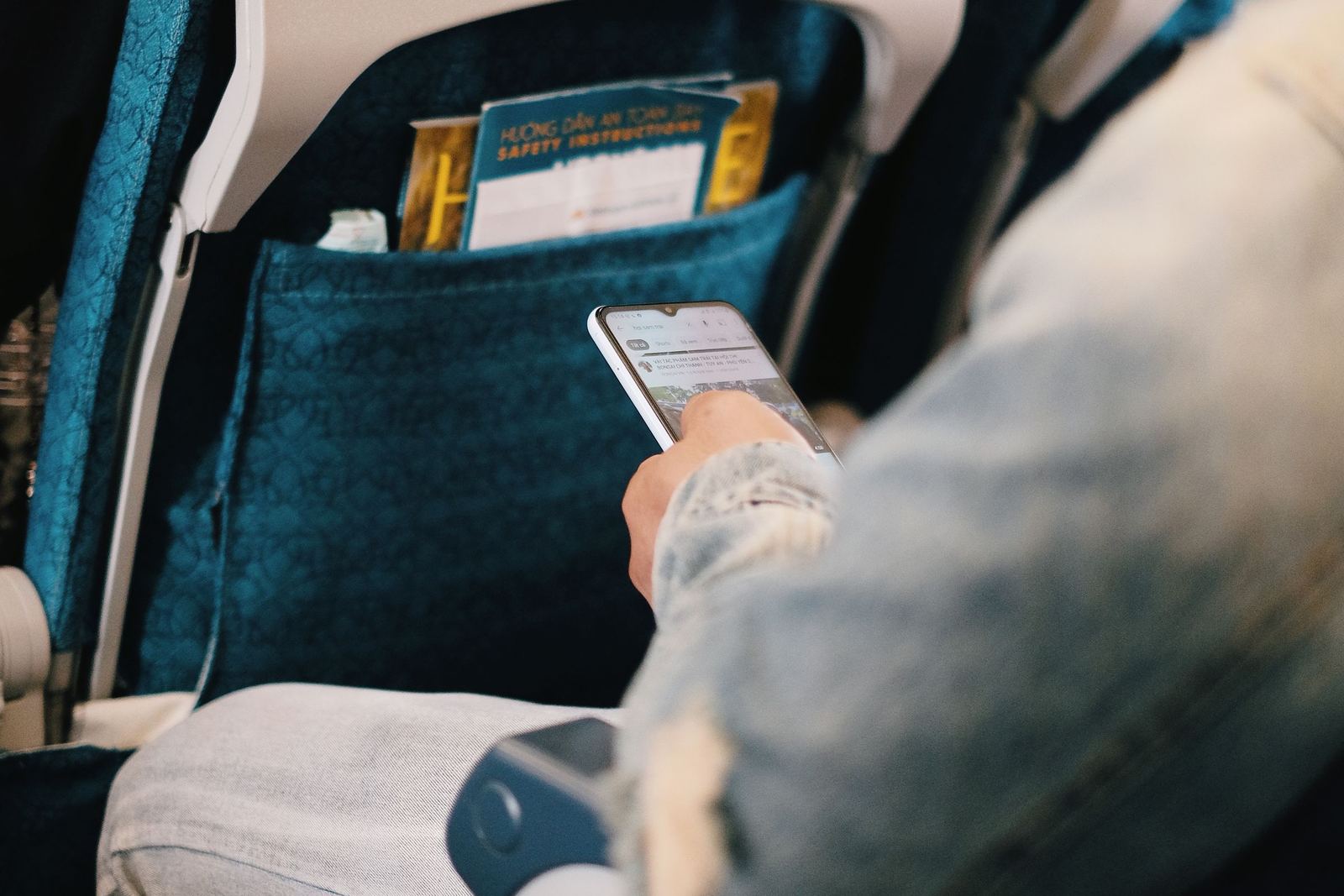
To delete downloaded movies and shows from the Apple TV app on iPhone, open the Apple TV app, tap Library, tap Downloaded, swipe left on a title and tap Delete. Then turn off Automatic Downloads in Settings > Apps > TV so new episodes don't refill the phone. Movies you bought stay in your Library to stream or download again; rentals delete themselves.
That's the fix for the week after Thanksgiving: you saved a few movies and a season of something for the flight, landed, and now the iPhone says storage is almost full and won't take photos of the leftovers. The steps below come from Apple's support article Delete movies and TV shows in the Apple TV app and Apple's Apple TV app settings guide, checked on November 21, 2026.
How do I delete downloaded movies from the Apple TV app?
Delete them inside the Apple TV app, from the Downloaded list in your Library. Apple's steps for iPhone:
- Open the Apple TV app.
- Tap Library, then tap Downloaded. Apple says if you don't see Downloaded, you might not have any items stored on the device.
- Swipe left on the movie or episode you want to remove, then tap Delete.
- Confirm when asked.
On an iPad (say, the one the kids watched on the plane), Apple's library guide says to tap Downloaded, tap Edit, select the items and tap Delete.
Not sure what's actually on the phone? In the Apple TV app, Apple says a download icon next to a movie or episode means it's stored on your device.
How much space are Apple TV downloads using?
Check Settings > General > iPhone Storage and find the TV app in the list. Apple's article How to check the storage on your iPhone and iPad says that screen lists apps by how much storage they use, and tapping an app shows the details.
Apple doesn't publish how big a downloaded movie is, because it depends on the length and the quality you chose. Apple's settings guide does say High Quality downloads are slower and use more data than Fast Downloads, and that each extra audio language you add to your downloads makes them bigger.
Apple also says some apps let you delete their documents and data from the iPhone Storage screen. Don't count on it here: the Downloaded list in the app is the route Apple documents for the Apple TV app.
How do I stop the Apple TV app downloading episodes on its own?
Turn off Automatic Downloads in Settings. Apple's settings guide says, when it's on, the app downloads the next two episodes of shows you start in Continue Watching, and deletes them when you finish watching.
- Open Settings.
- Tap Apps, then tap TV.
- Turn off Automatic Downloads. If you don't see the switch, your version of iOS doesn't have it.
On the same screen, under download options, Apple lists three more things that control how much space downloads take:
- Use Cellular Data: turn off to limit downloads to Wi-Fi.
- Cellular and Wi-Fi quality: High Quality or Fast Downloads. Pick Fast Downloads if space matters more than picture quality on a phone screen.
- Languages: every audio language you add is downloaded with each title. Swipe left on one and tap Delete to remove it. Apple says Sign Language versions are about twice the file size.
Will I lose the movie if I delete the download?
Not if you bought it. Deleting a download removes the copy on your iPhone, not the purchase, and the movie stays in your Library to stream or download again. Rentals and subscription downloads work differently:
| What you downloaded | What Apple says happens | Delete it now? |
|---|---|---|
| A movie or show you bought | Stays in your Library after you delete the download. | Yes, if you've watched it. You can download it again on Wi-Fi. |
| A rental | 30 days to start watching, then 48 hours once you start. After that it's deleted from your Library. | Yes, once you've finished it. It's leaving anyway. |
| A title from an Apple TV subscription or Apple TV channel | Most channel downloads are available for up to 30 days; some subscription titles expire 48 hours after you start playing them. The number you can keep at once may be limited. | Yes, if you've watched it. It frees room for new downloads too. |
Sources: Apple's Rent movies from the Apple TV app and Download and stream from your Apple TV subscription and Apple TV channels. Apple doesn't give a fixed number for the subscription download limit.
Tip: Flying home after the holiday? Delete what you watched on the way out first, then download the next movie on Wi-Fi the night before you leave.
What if the iPhone is still full after deleting them?
Then the movies weren't the main problem. Go back to Settings > General > iPhone Storage and look at the biggest bar. After a trip it's often one of these:
- Downloads in other apps. Netflix, YouTube and Spotify keep theirs inside each app: how to delete Netflix, Spotify and YouTube downloads.
- Long videos you filmed. A few minutes of 4K video from the trip can add up to gigabytes: find and delete large videos.
- Recently Deleted. Photos and videos you deleted still use space for up to 30 days unless you empty it: how to empty Recently Deleted.
Where Phone Diet helps, and where it doesn't
Full disclosure: we make Phone Diet. It can't see or delete Apple TV app downloads. iOS keeps each app's files to itself, so no cleaner app can remove another app's downloaded movies. Use Apple's steps above for that. They're free and they work.
Where it helps is the camera roll from the same trip. Phone Diet's free scan looks through the photos and videos on your iPhone and lists Large Videos (200 MB and up) biggest first, plus screen recordings, duplicates and similar shots. Your first cleanup of up to 1 GB is free; after that, cleaning needs Premium. What it removes stays in its Recover list for 30 days by default.
Who it's not for: if iPhone Storage shows the TV app as the big bar and Photos is small, you don't need it. Deleting the downloads is the whole fix.
Questions people ask
How do I delete downloaded movies from the Apple TV app on iPhone?
Open the Apple TV app, tap Library, then tap Downloaded. Swipe left on the movie or episode, tap Delete and confirm. If there's no Downloaded section, Apple says you might not have any downloads on that device. On iPad, tap Downloaded, tap Edit, select the items and tap Delete.
If I delete a downloaded movie I bought, do I lose it?
No. Deleting a download removes the copy stored on your iPhone, not the purchase. A movie or show you bought stays in your Library, where you can stream it or download it again.
How do I stop the Apple TV app from downloading episodes automatically?
Open Settings, tap Apps, then tap TV, and turn off Automatic Downloads. Apple says that switch downloads the next two episodes of shows you start in Continue Watching and deletes them after you finish watching.
Do Apple TV rentals delete themselves?
Yes. Apple says you have 30 days to start watching a rental before it's deleted from your Library, and once you start, it's available for 48 hours. You can still delete the download sooner to free the space.
Why can't I download more from my Apple TV subscription?
Apple says the number of titles you can download from an Apple TV subscription at one time might be limited, and some channels limit how many titles can be downloaded at once. Delete downloads you've already watched, on this or another of your or your family's devices, to make room.
Phone still full of trip videos?
Phone Diet lists the largest videos you filmed, biggest first, so you can see what to delete or keep before the next trip.
Get Phone Diet on the App Store