How to Fill a Digital Photo Frame From Your iPhone
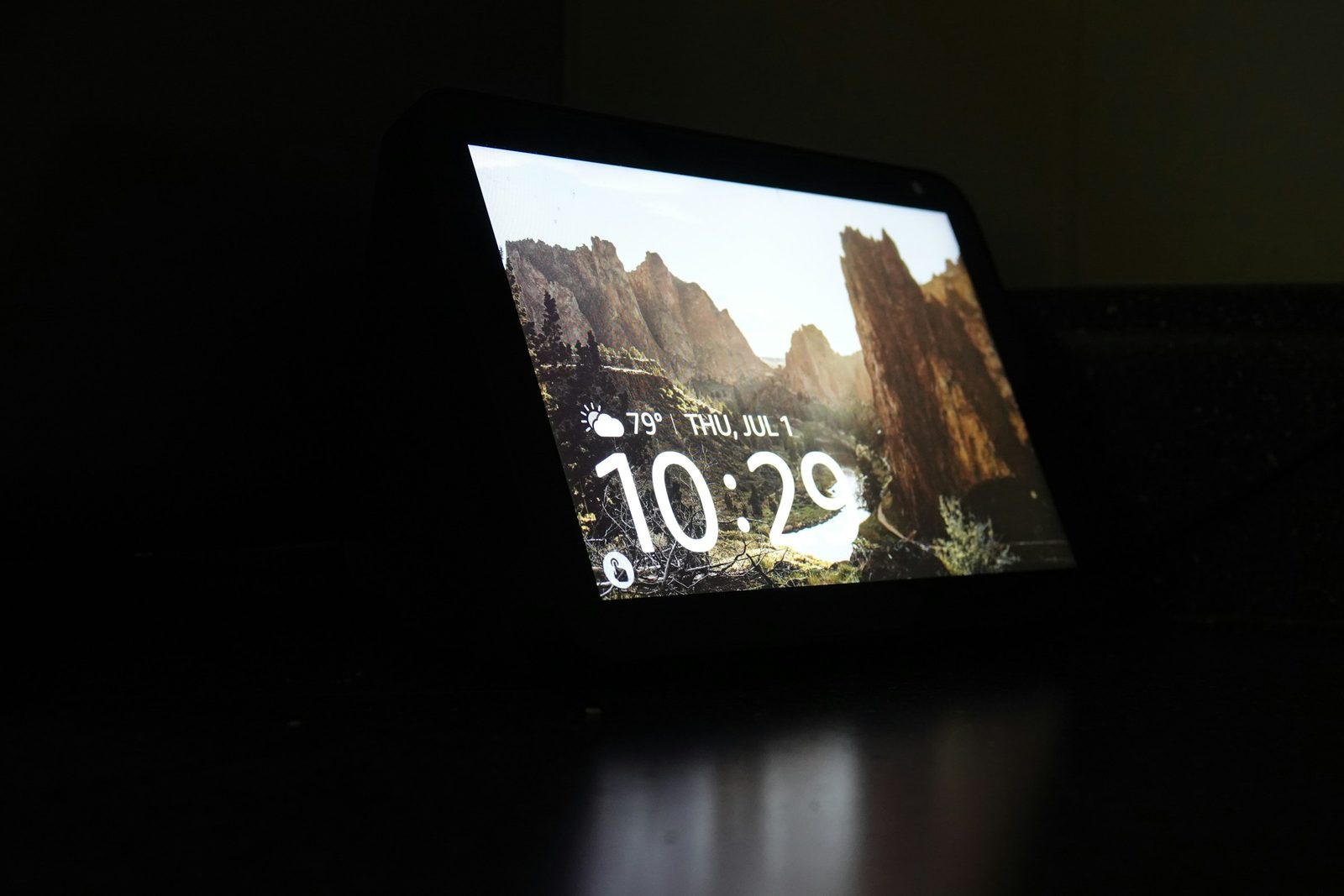
You bought Mom a digital photo frame for Christmas, or it's sitting in a Black Friday cart, and now you're staring at 14,000 photos on your iPhone wondering which ones go on it. Dump the whole Camera Roll and Grandma gets a slideshow of parking-spot screenshots, five near-identical shots of every pose, and receipts. The short answer: make one album in Photos just for the frame, merge duplicates and drop screenshots and near-copies before you add anything, then send that album with the frame's own app. On an Aura frame, turn on Auto-Add so new photos you drop into the album reach the frame on their own. The steps are below, with the snags that make frames look empty on Christmas morning.
The iPhone steps follow Apple's iPhone User Guide for iOS 27 (iOS 26 is the same). Frame steps differ by brand: we use Aura's help center as the worked example because its app reads your iPhone albums directly. Check your own frame's help pages for the exact buttons.
Step 1: Make one album just for the frame
Most frame apps let you pick photos one at a time or send a whole album. An album is far easier to keep tidy, and you can keep adding to it all year. From Apple's guide to creating photo albums:
- Open Photos and tap Collections.
- Tap Albums, then the + button, then New Album.
- Name it something obvious, like "Mom's frame", add photos, and tap Create.
To add more later, open the album, tap the More button, tap the album's title, then Add Photos. Deleting the album later never deletes the photos in it; Apple says they stay in your library.
Step 2: Pick photos that look good on a frame
A frame shows one photo at a time, across a room, for a minute or more. What works on a phone doesn't always work there:
- Match the frame's shape. Most frames sit landscape. Aura says its app positions each photo automatically for the frame's orientation, prioritising faces, so a tall portrait shot gets cropped or shown with bars. Favour sideways photos for a sideways frame. On Aura you can fix a bad crop later: tap the photo in the app's Photos section, then Position to pan, zoom or rotate.
- One photo per moment. Burst shots and the eight takes of the same group photo look like a stuck slideshow. Pick the best and leave the rest out.
- No screenshots, memes or documents. They're the most common thing to slip into a "Select All".
- Short videos only. Aura says it trims videos to the first 30 seconds (you can change which 30 in the app), plays them without sound, and converts HDR video to standard range. Some frames don't play video at all.
Hunting for the good ones across years of photos? Search in Photos for a person or a place, or use the tips in our guide to finding your holiday card photo fast. The dinner shots people ask to see again are usually last year's Thanksgiving photos, and those are the ones worth putting on a frame.
Step 3: Clear out duplicates before you add anything
If the same photo is in your library twice, it can end up on the frame twice. iOS finds exact duplicates for free. From Apple's guide to merging duplicate photos:
- In Photos, tap Collections, then Utilities, then Duplicates.
- Tap Merge on a set, then Merge [number] Items.
If Duplicates doesn't appear, Photos hasn't found any. It only catches copies of the same photo, not the five slightly different shots you took in a row; for those, see finding and deleting similar and duplicate photos.
Phone Diet's Best Shot groups similar photos and marks the best one to keep, and its Screenshots and Blurry Photos lists catch what you don't want on a frame. Phone Diet puts what you remove in Recover for 30 days first.
Step 4: Send the album with the frame's app
Here's how Aura's help article on adding albums to a frame describes it:
- Open the Aura app, tap the three lines in the top-left corner, choose the frame, and tap Add Photos.
- Tap Camera Roll at the top to switch to album view, then choose your frame album.
- Tap Select All.
- When asked, turn on Enable Auto-Add if you want the frame to keep syncing with that album, then tap Add.
With Auto-Add on, every photo you later drop into the album on your iPhone goes to the frame. Aura says Auto-Add also filters out suspected duplicates and blurry photos, but don't rely on that filter to clean up for you. Two catches from Aura's help pages: Auto-Add is tied to the phone that set it up, so a new iPhone or reinstalling the app means setting it up again; and videos can't arrive through an Auto-Add album, so add those by hand.
Other frames work differently. Skylight, for example, gives each frame its own email address: photos sent to it load onto the frame. That's handy for relatives who just want to email a picture from their phone.
Albums missing in the frame app? The app probably has Limited Access to your photos, so it can only see the ones you once picked. Go to Settings > Privacy & Security > Photos, tap the frame's app and choose Full Access. Aura's photo access page says full access only lets the app show your photos so you can choose them; it doesn't upload your library.
Step 5: Want the whole family adding photos?
Aura says Auto-Add also works with shared albums from iCloud, so brothers, sisters and cousins can add photos to the frame without access to the frame itself. Know what that costs before you set it up. Apple's Shared Albums limits page says that on iOS 27, photos and videos in a shared album you own count toward your iCloud storage, and so does everything other people add. A temporary shared album doesn't count, but it's deleted after 30 days, which is no good for a frame that should keep filling up. Our guide to collecting everyone's Thanksgiving photos explains the album types in more detail.
If you'd rather not use your storage, keep the frame album personal and add the best family photos yourself after each get-together.
Why your photos aren't on the frame yet
Aura's upload explainer says photos can take hours or even days to reach the frame, even though they show in the app straight away. It's slowest when:
- The originals are in iCloud. With Optimize iPhone Storage on, your phone keeps smaller versions and iCloud keeps the full ones. The phone has to download each original before it can upload it.
- You're sending video. Aura says videos are 5 to 10 times bigger than photos.
- The app is in the background or the phone is on battery.
The fix: load the frame the night before you wrap it, with the app open, the phone on home Wi-Fi and plugged in. Don't do it in the car on the way to Grandma's. If the frame is the surprise, photos of the box and the receipt can still spoil it: hide those gift photos so they stay out of Memories and a shared library.
Can you delete the photos from your iPhone afterwards?
Aura's help page on removing photos says photos already uploaded to a frame stay on it if you delete them from your phone. Tempting if your storage is full, but be careful:
- With iCloud Photos on, Apple says deleting a photo on one device deletes it everywhere, after 30 days in Recently Deleted.
- The frame's copy isn't your original. Aura re-encodes videos to about 1080p and keeps 30 seconds of them.
Treat the frame as a display, not a backup. Delete the true junk (duplicates, screenshots, the failed takes), not the photos you sent. If storage is the real problem, our guide to what's filling your iPhone is the better place to start.
Where Phone Diet helps, and where it doesn't
Full disclosure: we make Phone Diet. Everything above is free and built into iOS or the frame's app.
What Phone Diet can do here is the clean-up in Steps 2 and 3, across your whole library rather than one album:
- Best Shot groups near-identical photos, marks the best one, and removes the rest.
- Duplicates, Screenshots and Blurry Photos lists find what shouldn't go near a frame.
- What you remove goes to the app's Recover list first (30 days by default), so a wrong tap isn't final.
What it can't do: it doesn't make albums, it can't see or send anything to a frame, and it can't fix crops or orientation. Your first cleanup is free up to 1 GB; after that it's Premium.
Who it's not for: if you're hand-picking 50 photos for a frame, you don't need a cleaner app. Apple's Duplicates collection and your own eye will do it.
Questions people ask
Can I delete photos from my iPhone after they're on the frame?
Aura says they stay on the frame. But with iCloud Photos, deleting on your iPhone deletes everywhere, and the frame keeps only a re-encoded copy of videos. Keep your originals.
Why don't my albums show up in the frame's app?
Usually Limited Access. Settings > Privacy & Security > Photos > the frame's app > Full Access.
Why is my frame taking so long to get my photos?
Aura says uploads can take hours or days, slower for iCloud-only originals and videos. Keep the app open, on Wi-Fi and plugged in.
Will a shared album for the frame use my iCloud storage?
On iOS 27, yes, including what others add. Temporary shared albums don't, but they expire after 30 days.
Clear the clutter before it reaches the frame
Phone Diet finds near-identical shots, duplicates, screenshots and blurry photos across your library, so the album you send is all keepers.
Get Phone Diet on the App Store