What to Do With Screenshots You Meant to Keep
Most screenshots are finished the moment you take them. The rest are a to-do you never did: a recipe to cook, a song to find, a receipt to file, a code to keep somewhere safe. Search Photos for words inside them to pull those out, put each one where it will actually get used (recipes into your recipe app or Notes, songs into a playlist, receipts into Wallet, Files or your mileage log, codes into the Passwords app), then delete the whole Screenshots album in one go and empty Recently Deleted.
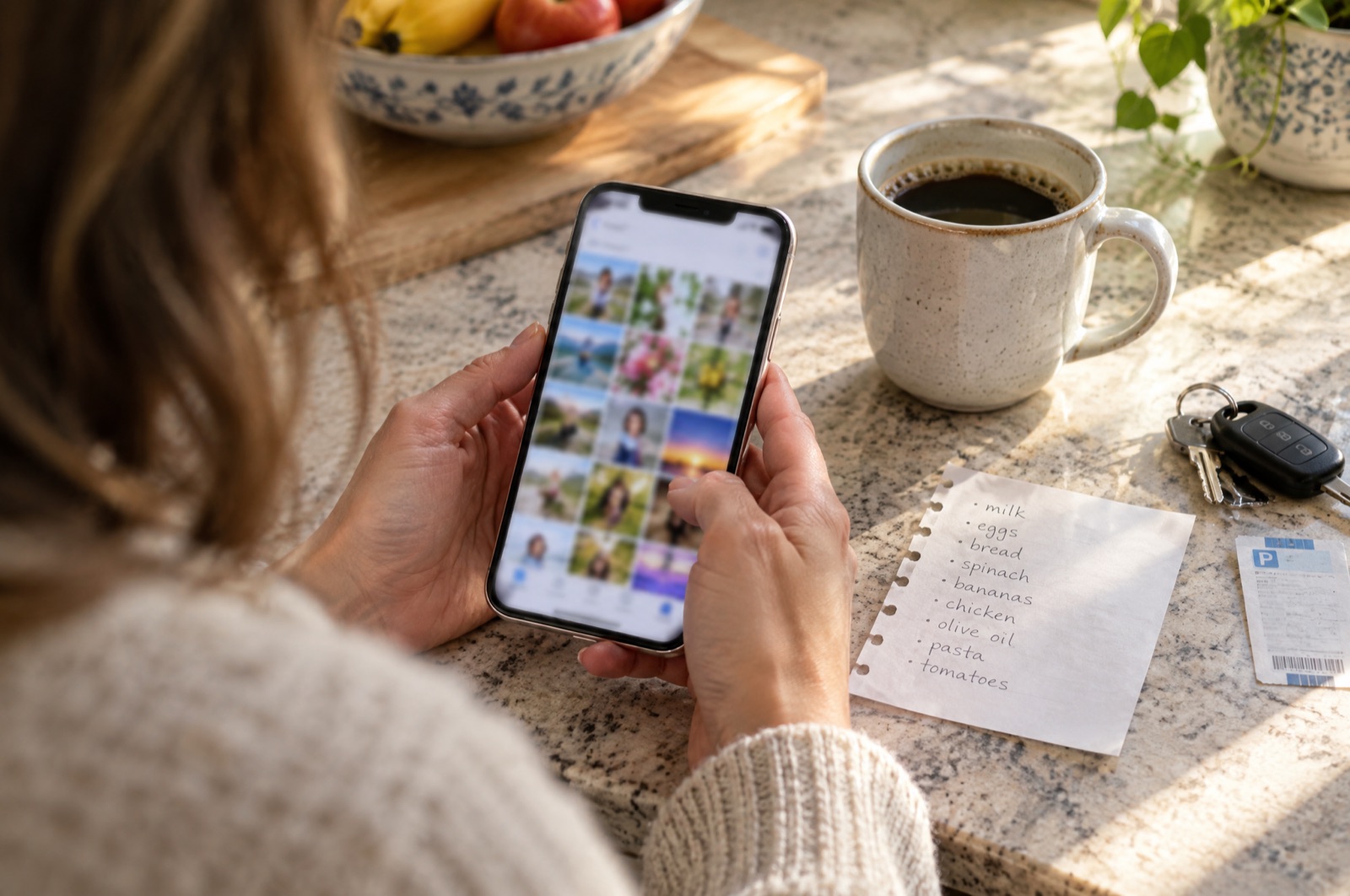
You open the Screenshots album to clear it and get stuck after a few seconds. Two thousand screenshots, and every twentieth one is something you meant to do: the soup from a friend's story, the song from a café, the parking payment from a client visit, the backup codes from last spring. So you close the album, and the pile grows.
The way out is to do each kind of to-do once, in bulk, and then delete everything. Keeping the screenshot is what stops you from using it. A recipe in your camera roll is buried between photos of your kids. In a recipe app it's next to your other recipes.
1. Pull the keepers out in five minutes
Don't scroll through two thousand thumbnails. Photos reads the text inside images, so you can search for it.
- Open Photos and tap Search.
- Type a word that only shows up in one kind of screenshot: tbsp or oven for recipes, total, order or parking for receipts, code or backup for recovery codes.
- Tap Select, pick the ones you still need and add them to a new album called something like To sort (Add to Album is in the share sheet or the ••• menu, depending on your iOS version).
Songs are harder to search for because a screenshot of a playing song has no shared word. Scroll the Screenshots album (under Media Types, inside Collections on recent iOS) and look for the now-playing layout: a square cover and two lines of text. They're easy to spot at a glance.
Tip: Work on the To sort album, not the whole library. When it's empty, you're done, and everything still in the Screenshots album can go.
2. Recipes: put them where you cook from
A recipe screenshot is usually half a recipe: the ingredient list from one frame of a video, or the method without the quantities. Before it goes anywhere, check whether you can get the whole thing.
- If the screenshot shows a website name, search that recipe title, open the page and save the link. You'll get the full recipe, including the half you didn't capture.
- If it's from TikTok, Instagram or YouTube, find the original post again (the creator's name is usually in the corner) and save that instead. Our sister app's guide to saving recipes from TikTok, Instagram and YouTube covers where the real recipe usually is: the caption, a pinned comment or a link in the bio.
- If the screenshot is all you have, copy the text out. Press and hold the text in the photo (Live Text), copy it and paste it into Notes. It's free, and it's searchable.
We also make RecipeScan, which saves recipes as editable cards with an ingredient list you can turn into a shopping list. To be specific about cost: saving a recipe from a website link is free for up to three recipes. Sharing a screenshot to RecipeScan and having it read the recipe from the image is a Premium feature. For a handful of recipes, Notes is fine.
3. Song names: one playlist, then delete
The song screenshots are the easiest to clear, because each one takes ten seconds: search the title, add it to a playlist, delete the screenshot. Make one playlist (call it From screenshots) and run through them in a single sitting in whatever music app you use.
In Trending Music, our free music app, that's Search, play the song to make sure it's the right version, then add it to the playlist. Creating playlists and adding songs is free. If the song came from a trip abroad, that country's chart is a quick place to find it again: here's how to see the top songs in any country on iPhone.
To stop making these screenshots, add Music Recognition to Control Center. It names the song that's playing nearby and keeps a history, so the song is saved without a picture of it.
4. Receipts, tickets and parking: file them where they count
- Boarding passes and event tickets: most airline and ticket apps have Add to Apple Wallet. Once a pass is in Wallet, the screenshot is a duplicate.
- Order confirmations for things still under warranty or returnable: the same order is almost always in your email. Search your inbox for the order number and delete the screenshot. If it really only exists as a screenshot, save it to Files in a Receipts folder, which takes it out of your photo library.
- Parking and tolls from driving for work: these are worth money. In the US, business parking fees and tolls are deductible on top of the standard mileage rate (IRS Publication 463), and a parking-app screenshot already shows the date, place and amount. Parking at your regular workplace is commuting and doesn't count. Our sister site explains how parking and tolls stack with the standard mileage rate.
If you track business miles in TaxMiles (we make it), go to Taxes → Tolls & Parking → + → Add Parking, type the amount, and tap Add Receipt Photo to attach the screenshot from your library. That's free. Then the screenshot can leave your camera roll, because the copy lives with the expense. (Scanning a receipt so the app reads the amount for you is part of TaxMiles Pro.)
5. Recovery codes and passwords: get them out of Photos
Screenshots of two-factor backup codes, Wi-Fi passwords or a PIN are the ones you most need and the ones that least belong in Photos. With iCloud Photos on, they sync to every device you're signed into and come up whenever someone scrolls your camera roll.
Open the Passwords app, find that account, tap Edit and paste the codes into its Notes field (Live Text lets you copy them straight from the screenshot). Or print them and keep the paper somewhere safe. Then delete the screenshot and remove it from Recently Deleted, so it's actually gone.
6. Now delete the rest in one pass
Once the To sort album is empty, everything still in the Screenshots album is something you've already used. Open it, tap Select, and drag your finger across and down the grid to select hundreds at once (the full gesture is in how to delete multiple photos at once). Tap the trash icon, then open Recently Deleted and delete them there as well. Until you do, they keep using space for about 30 days. The step-by-step version, with what to check first, is in how to delete screenshots on iPhone.
Rather see every screenshot in one list? Phone Diet (we make it) groups your screenshots, screen recordings, duplicates and large videos so you can clear each group together. Your first cleanup is free, up to 1 GB of photos and videos; after that it needs Premium.
When this isn't worth doing
If you have a few hundred screenshots and plenty of storage, skip it: the space is small (a screenshot is usually 200 KB to 1 MB) and the album does no harm. Do it when the phone is full, when you're about to move to a new iPhone, or when you've gone looking for a recipe or a receipt twice and couldn't find it. And if the storage is the real problem, screenshots are rarely the biggest pile. A few long videos usually take up more. Start with what's actually filling your iPhone.
Common questions
Should I just delete all my iPhone screenshots?
Most of them, yes, but not blind. Roughly one in ten is something you still need: a recipe, a song name, a receipt, a ticket or a recovery code. Pull those out first by searching Photos for words in them (tbsp, receipt, parking, code), move each one to the app where you will use it, then select the rest of the Screenshots album and delete it in one pass. Empty Recently Deleted afterwards or no space comes back.
How do I find one screenshot among thousands?
Search Photos for a word that appears in the screenshot. Photos reads text inside images, so typing tbsp or oven finds recipe screenshots, and parking, total or order number finds receipts. The Screenshots album, under Media Types (in Collections on recent iOS versions), shows only screenshots so photos don't get in the way.
Is it safe to keep recovery codes as a screenshot?
Not really. If iCloud Photos is on, the screenshot is synced to every device and to iCloud, and it shows up whenever someone scrolls your camera roll. Copy the codes into the Notes field of that account in the Passwords app, or print them, then delete the screenshot and empty Recently Deleted.
Can I deduct parking if I take the standard mileage rate?
In the US, yes, for business trips: parking fees and tolls are deductible on top of the standard mileage rate, according to IRS Publication 463. Parking at your regular workplace is commuting and is not deductible. Keep the date, place and amount, which is exactly what a parking app screenshot shows.
Clear the screenshots you've already used
Once the keepers are filed, Phone Diet gathers your screenshots, screen recordings and duplicates into lists so the rest goes in a few taps.
Get Phone Diet on the App Store