iCloud Photos Says “Syncing Paused”? What It Means and How to Fix It
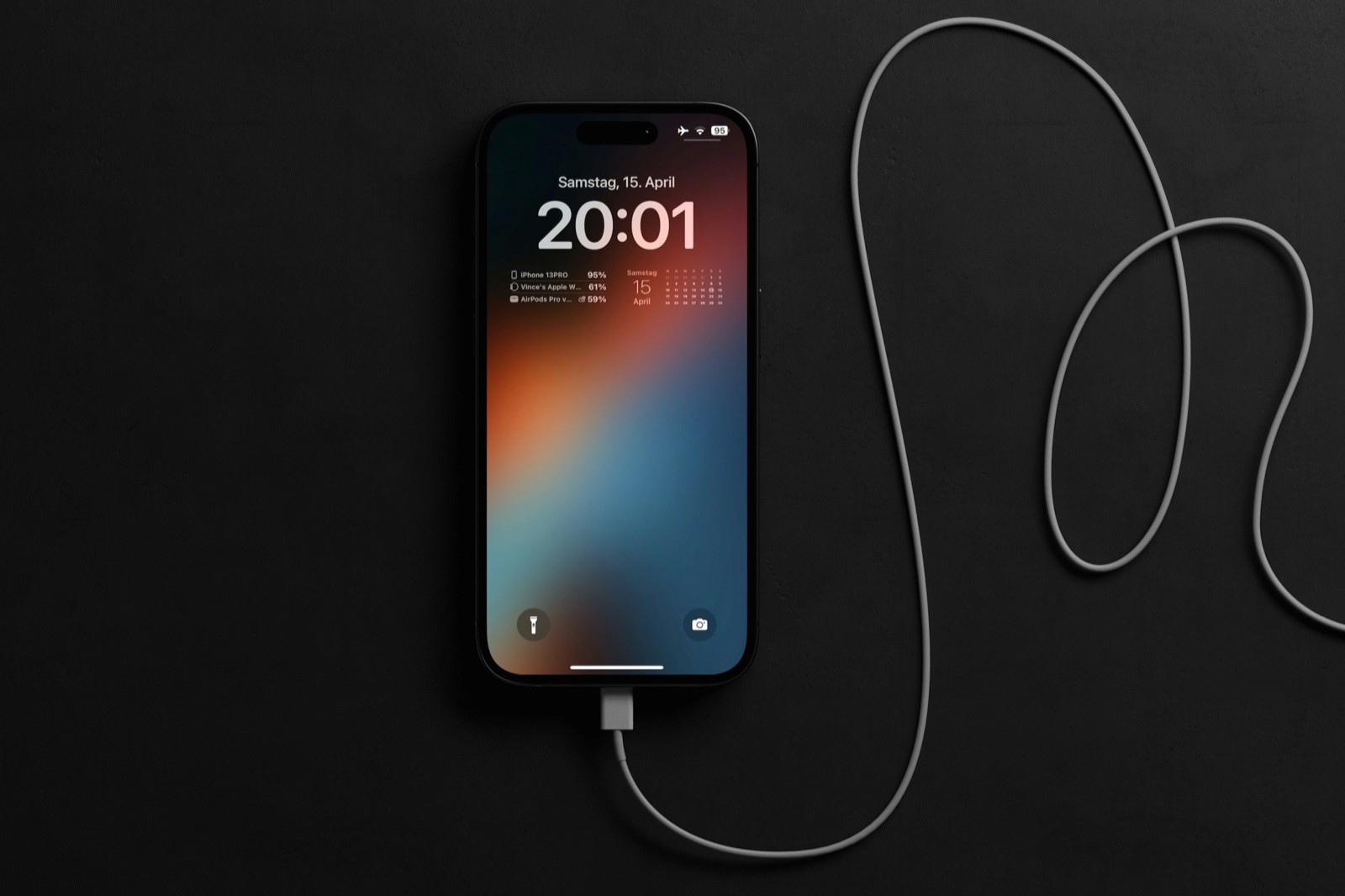
You're about to trade in your old iPhone for the new one, or your Thanksgiving photos still haven't shown up on the iPad, and at the bottom of the Photos library it says syncing is paused. The short answer: “paused” almost always means your iPhone is waiting for something: power, Wi-Fi, a cooler temperature, or space. Check the status to see which, fix that one thing, then leave the phone plugged in on Wi-Fi overnight. Don't turn iCloud Photos off to “reset” it, and don't erase the phone until the pause is gone, because anything that hasn't uploaded yet exists only on that iPhone.
Your photos are not lost while syncing is paused. They're still on the phone; they just haven't reached iCloud (or come down from it) yet. The steps below follow Apple's support article If your iCloud Photos aren't syncing or syncing with iCloud is paused.
Step 1: Read the status message
The status tells you why it stopped. Where to find it, per Apple:
- iOS 18 and later: open Photos, scroll down to Collections, and tap the profile button (your picture or initials at the top).
- iOS 17 or earlier: open Photos, tap Library, tap All Photos, and scroll to the very bottom.
- Mac: in Photos, choose Library in the sidebar, click All Photos and scroll to the bottom.
Apple says the status comes with a green, yellow or red indicator. If there's a Sync Now button, you can tap it to push past some kinds of pause.
Step 2: Fix the reason it gives
| What the status says | What it means | What to do |
|---|---|---|
| Low Power Mode | Paused to save battery | Turn Low Power Mode off in Settings > Battery, or from Control Center. |
| Low Data Mode | Paused to save data | Turn off Low Data Mode for your Wi-Fi network (Settings > Wi-Fi, tap the ⓘ next to it) or your cellular plan. |
| Low Battery | Battery is below 20% | Plug it in. Syncing resumes on its own. |
| Optimizing Battery Power, Optimizing System Performance, or Poor Network Connection | The iPhone is holding off to save power, keep the phone responsive, or wait for a better connection | Tap Sync Now, or wait. It picks up again by itself. |
| iPhone Needs to Cool Down | Paused so the phone doesn't overheat | Take it out of the sun or off the charger pad for a while. Tap Sync Now if it's offered. |
| iCloud storage is full | Your iCloud plan has no room left, so new photos can't upload | Free up iCloud space or move to a bigger plan (see below). |
| Move Photos to Personal Library to Continue Syncing | You're in an iCloud Shared Photo Library and its owner is out of iCloud space | Move the items you added back to your Personal Library, or ask the owner to free space or upgrade. |
Photos also lets you pause syncing by hand. If you see a Resume option where the status is, someone paused it on purpose; tap it.
The overnight fix: Apple's first suggestion is the dull one, and it's the one that works most often. Plug the iPhone in, connect it to Wi-Fi, lock it and leave it overnight. A big holiday batch, especially long videos, can take hours to upload.
The cause Apple's list leaves out: a full iPhone
Apple's article covers iCloud being full. It doesn't list the phone itself being full, but people on Apple's Community forums regularly report syncing paused with a message about not enough iPhone storage. Photos needs working room on the phone to process new photos and to download full-size copies when you edit or share them. With almost nothing free, it stalls.
Check in Settings > General > iPhone Storage. If the bar is nearly full, clear a few gigabytes. Go where the gigabytes are:
- Remove streaming downloads. Offline shows in Netflix, YouTube and similar apps can each take gigabytes, and you can download them again. See deleting offline downloads.
- Offload an app you rarely use. In iPhone Storage, tap the app and choose Offload App. Apple says this frees the app's storage and keeps its documents and data.
- Delete large videos you don't need. Careful here, and read the warning below first. How to find your biggest videos.
Not sure what's taking the space? Phone Diet scans your photo library on the phone and lists duplicates, screenshots and Large Videos, biggest first. The scan is free.
Turning on Optimize iPhone Storage won't help on its own here. It can only swap full-size photos for smaller ones after they've uploaded, and a paused library isn't uploading. More in why Optimize iPhone Storage doesn't free space right away.
A warning before you delete anything
With iCloud Photos on, deleting a photo on the iPhone deletes it from iCloud and every other device too. And a photo taken since syncing paused hasn't reached iCloud yet, so the copy on this phone is the only one. Delete things you're sure you don't want, like duplicates, blurry shots and old screen recordings. Leave the rest alone until syncing has caught up. Deleted items wait in Recently Deleted for 30 days if you change your mind.
If iCloud storage is full
The free iCloud plan is 5 GB, and photos plus device backups fill it quickly. Your options:
- See what's using it. Go to Settings > [your name] > iCloud. Old backups of phones you no longer own are often the easiest win. If you're on Family Sharing, here's how to see who is using the shared plan.
- Shrink the photo library. Duplicates and long videos count against iCloud too. Removing them frees space on the phone and in iCloud once Recently Deleted is emptied. Our iCloud storage full guide goes through it.
- Upgrade the plan. In the same iCloud screen, tap the option to change or upgrade your storage. If the jump is temporary, you can downgrade again later, but only once what you store fits the smaller plan.
Still paused? Apple's last checks
- Don't turn iCloud Photos off and on. Apple says this restarts the whole sync from the beginning. It's the most common advice online and the slowest fix.
- Update iOS in Settings > General > Software Update.
- Check that other iCloud services work. If Mail, Contacts or Messages in iCloud aren't syncing either, check your Wi-Fi and Apple's System Status page.
- Make sure you're signed in with the same Apple Account on every device you expect the photos to appear on.
- If you use a Shared Library, check which library you're looking at. Photos you moved to the Shared Library no longer show in your Personal Library view.
- Look for an album called Unable to Upload. Apple says photos that failed land there. Edit them or upload them again; Apple lists the supported file types (HEIF, JPEG, RAW, PNG, GIF, TIFF, HEVC, MP4 and iPhone formats like Live Photos).
Before you trade in or erase the old iPhone
This is when a paused sync really costs you. Erasing an iPhone doesn't touch iCloud, but it does wipe anything that never got there. Before you erase:
- Open the status in Photos and make sure it no longer says paused and isn't counting items left to upload.
- On a computer, sign in at icloud.com/photos and find your newest photos and videos there. If last weekend's videos are missing, the old phone isn't done.
- Then follow the rest of our trade-in checklist.
On a new iPhone, give it a night on power and Wi-Fi too. The library fills in gradually, so photos that look blurry or show a loading circle on day one are usually just still downloading.
Where Phone Diet helps, and where it doesn't
Full disclosure: we make Phone Diet. Everything above is free and built into your iPhone.
Phone Diet can't restart, speed up or fix iCloud syncing, and it can't tell you whether a particular photo has uploaded. What it does is help with the two causes that are about space. The free scan finds duplicates, similar shots, screenshots and Large Videos (200 MB or more) in your library, on the phone, without uploading your photos anywhere. Your first cleanup of up to 1 GB is free; after that, cleaning needs Premium. Because it deletes through Apple's Photos library, the same rule applies: with iCloud Photos on, what you delete leaves iCloud too, so stick to the obvious junk until your sync has caught up.
Who it's not for: if your status says Low Power Mode, Low Battery or Poor Network Connection, you don't have a space problem. Plug the phone in, get on Wi-Fi and go to bed.
Questions people ask
Does “Syncing Paused” mean I lost photos?
No. Photos taken while syncing is paused stay on the iPhone. They upload once the pause clears. The risk is only if you delete them or erase the phone before that happens.
Why does iCloud Photos keep pausing?
Usually Low Power Mode, a battery under 20%, Low Data Mode, a weak connection, heat, or full storage on iCloud or the phone. The status in Photos (Collections, then your profile button) names the reason.
Should I turn iCloud Photos off and back on?
Apple says not to. Turning it off restarts syncing from the beginning, which takes longer than fixing the reason it paused.
How long does iCloud Photos take to sync?
It depends on how many photos and videos there are and on your connection. Apple suggests leaving the device on power and Wi-Fi overnight; a large library or a lot of 4K video can take more than one night.
Can iCloud Photos sync over cellular?
Yes, if you allow it. In Settings, open Photos (under Apps in recent iOS versions) and turn on Cellular Data. Low Data Mode on your cellular plan will still pause it.
Syncing stuck because your iPhone is full?
Phone Diet shows your duplicates and largest videos first, so you can see what's filling the phone before you delete anything.
Get Phone Diet on the App Store