Black Friday Email Flood: Clear It Without Losing Your Receipts
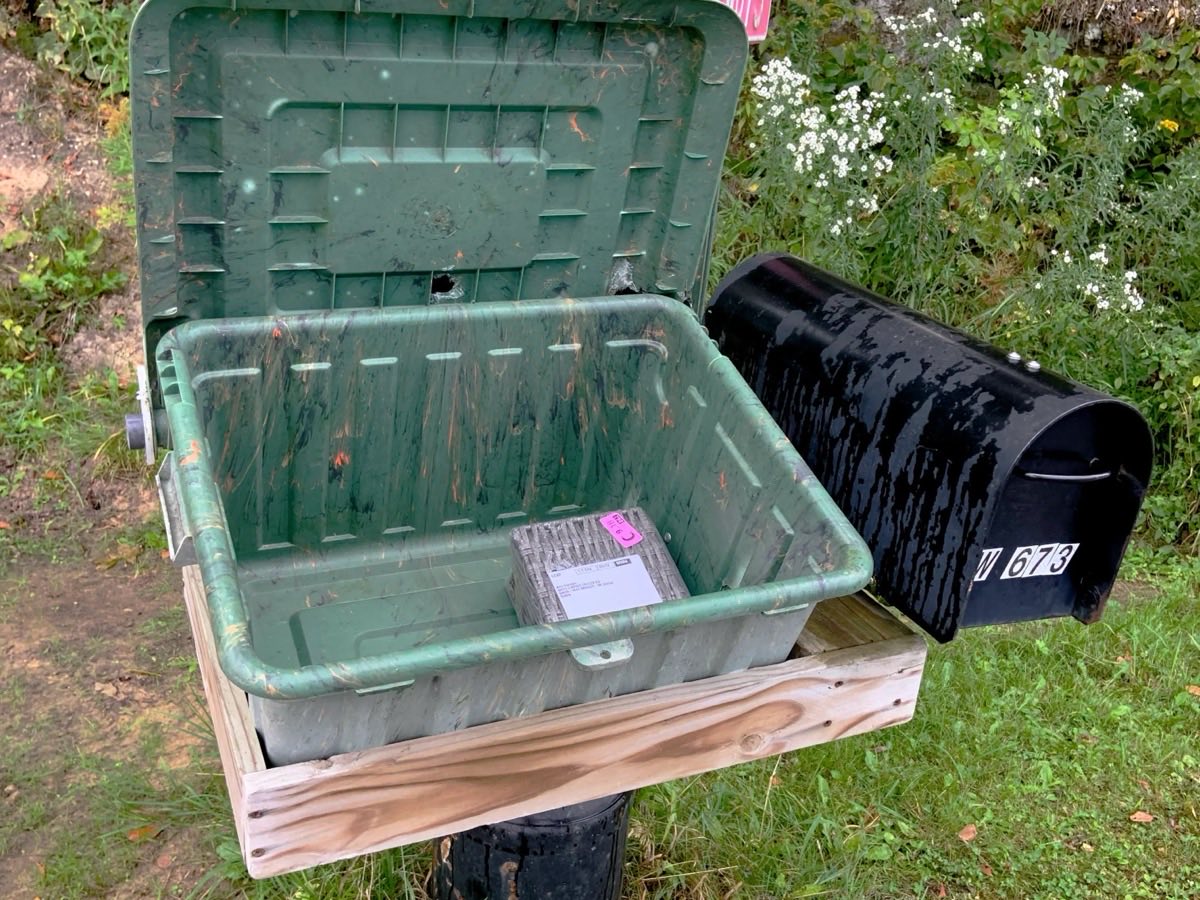
It's the Sunday after Thanksgiving. A package says delivered, but it isn't on the porch, and the tracking number is somewhere in an inbox that took 300 store emails since Thursday. You scroll past LAST CHANCE, Doorbusters extended and Your cart misses you, and the one email you need is nowhere.
The short answer: do it in this order. First protect the emails you need (orders, shipping, receipts, returns) by starring or flagging them. Then unsubscribe from the stores you don't buy from. Only then bulk-delete the promotions, with a search that leaves your starred mail alone. Black Friday is November 27 this year and Cyber Monday is November 30, so the best time to start is the week before, while the inbox is still quiet.
Step 1: Protect the emails you need, first
Bulk deleting is fast, and that's the danger: one wide search and a "Your order has shipped" goes with the coupons. So pull the keepers out before you delete anything.
Search your inbox for the words that real order mail uses. In the Gmail app or on gmail.com, this works as one search:
order OR shipped OR tracking OR receipt OR return OR refund
Add newer_than:60d to see only this season's orders. Open every result you still need and star it. In Apple Mail, search the same words and flag the ones to keep. If your iPhone shows Mail's categories along the top of the inbox, check Transactions too. Apple puts order confirmations, receipts and shipping updates there.
Keep these until the return window on that order closes. Many stores stretch returns on holiday purchases into January, and the order email is often the easiest proof of purchase you have.
Tip: a starred email is also the fastest way back to a tracking number. On Cyber Monday you search starred mail instead of the whole inbox.
Step 2: Unsubscribe from the stores you don't buy from
Most of the flood comes from lists you joined for a one-time 10% code. Keep the two or three stores you really shop at and drop the rest.
- Gmail: open an email from the store. When the store supports it, Gmail shows an Unsubscribe link next to the sender's name at the top. Tap it and confirm. Newer versions of the Gmail app also list your subscriptions in one place in the side menu, if yours has it.
- Apple Mail: mailing-list messages show a banner at the top that says the message is from a mailing list, with an Unsubscribe button. Tap it and confirm.
Unsubscribe rather than reporting spam for stores you signed up with. Marking a real store as spam can teach your mail provider to send that store's shipping emails to spam too, right when you're waiting on a package. Expect a few more emails after you unsubscribe: in the US, the CAN-SPAM Act gives senders up to 10 business days to process an opt-out.
Step 3: Clear the backlog, leaving starred mail alone
Now you can delete in bulk, because your keepers are starred. The quickest way in Gmail is a browser (gmail.com on a computer, or the desktop site), since the iPhone app can't select every result of a search at once:
- Search
category:promotions older_than:30d -is:starred. The-is:starredpart keeps everything you protected in step 1. - Tick the select-all box above the list, then click Select all conversations that match this search.
- Click Delete. The mail goes to Trash, and Gmail empties Trash after 30 days, so you have time to undo a mistake.
Want just one store gone? Search from:storename.com -is:starred and delete those. For Apple Mail, iCloud Mail and Outlook, bulk deleting is easiest on a computer as well: search the store or the word sale, select all, and leave out anything flagged.
Be realistic about the space this frees. Store emails are small one by one, so even thousands of them usually add up to megabytes, not gigabytes. The real win is that you can find things again. If your email storage is actually full, the big files are old attachments; our full Gmail clean-up guide covers those. If it's the Mail app on your iPhone that shows several gigabytes, see how to shrink Mail's storage without losing email.
Phone Diet's Email tab ranks the senders filling your Gmail, iCloud Mail, Outlook, Yahoo, AOL or IMAP inbox, so you see which store sent 200 emails this month. The scan costs nothing, and your first cleanup (one sender, up to 1 GB) is free.
Step 4: Next year, give stores a different address
The flood starts the moment you type your real address into a pop-up for a discount code. Two habits stop it at the source:
- Hide My Email (iCloud+): Safari can suggest a random address that forwards to your inbox when you fill in a sign-up form, and you can turn that address off later in the iCloud settings on your iPhone. Turn it off on December 1 and the store's mail simply stops.
- Gmail plus addresses: sign up as yourname+shopping@gmail.com. It still lands in your inbox, but you can search or filter everything sent to that address in one go.
Where Phone Diet helps, and where it doesn't
We make Phone Diet, so here is what its Email tab does for this job, checked against the app itself.
- It shows you who's flooding you. It scans the inbox and lists senders by how much they sent, so the five stores behind most of the mess are at the top. It works with Gmail, iCloud Mail, Outlook, Yahoo, AOL and other IMAP accounts.
- It respects what you protected. For Gmail, starred mail is skipped by default, only read mail is deleted by default, and in Filters you can add protected keywords (say order, shipped and tracking) so a cleanup never touches mail that contains them.
- Deleted mail goes to Trash, not straight to permanent deletion. One exception: a few IMAP servers have no Trash folder, and the app warns you before deleting there for good.
- Quick Clean clears read Gmail promotions and social mail older than 30 days (leaving starred and keyword-protected mail) plus spam in one go.
What costs money: scanning is free and your first cleanup (one sender, up to 1 GB) is free. Quick Clean, unsubscribing from Gmail lists in the app, and cleanups after the first one are part of Premium.
What it won't do: it doesn't read your orders or track packages, and it can't tell a good store from a bad one. That decision is yours. And if you only get a handful of store emails, you don't need an app at all: the Unsubscribe link in Gmail or Mail and one search from step 3 are enough.
Common questions
How do I delete Black Friday emails without deleting my order confirmations?
Protect the order emails first. Search your inbox for words like order, shipped, tracking, receipt and return, and star or flag every result you still need. Then delete promotional mail with a search that leaves starred mail out, such as category:promotions older_than:30d -is:starred in Gmail. Deleted mail goes to Trash first, so you can still get a message back if you catch it in time.
Should I unsubscribe or mark store emails as spam?
Unsubscribe from stores you signed up with yourself. Use the Unsubscribe link Gmail shows next to the sender's name, or the unsubscribe banner Apple Mail shows at the top of mailing-list messages. Marking a real store's newsletter as spam can teach your mail provider to treat that store's order and shipping emails as spam too. Save Report Spam for mail you never asked for.
Why do I still get emails after unsubscribing?
Stores do not have to stop right away. In the US, the CAN-SPAM Act gives a sender up to 10 business days to honor an opt-out request, so a few more messages after Black Friday are normal. If a store keeps going after two weeks, it is fair to report it as spam.
How long should I keep order and shipping emails?
At least until the return window on that order closes. Many stores extend returns on holiday purchases into January, and the order email is often the easiest proof of purchase. Keep receipts for warranty items or anything you might claim as a business expense longer.
See which stores are burying your inbox
Phone Diet's Email tab lists the senders filling your inbox, skips starred and keyword-protected Gmail, and sends what you delete to Trash. Scanning costs nothing.
Get Phone Diet on the App Store